Sign-up forms aren't just for new subscribers. You can also use the Update Profile version of a sign-up form to collect or refresh information from existing employees.
This is useful when you need employees to provide information that isn't available from your HR system, or when you want employees to manage information themselves.
Common examples include collecting:
- Preferred language
- Time zone
- Office location
- Areas of interest
- Communication preferences
- Other employee profile information stored in People
After employees submit the form, the selected values are saved to the mapped People fields, allowing you to personalize communications, build Saved Searches, and support features such as
multi-lingual emails.
Create an Update Profile form
To collect employee profile information:
- Create a new Update Profile sign-up form. For detailed instructions, see Create and Edit a Sign-up Form.
- Add the People fields you want employees to gather or update, such as Preferred Language and Time Zone.
- Configure the form and save it.
Share the form with employees
Once your form is created, you can make it available to employees from within an existing newsletter.
Add the form as a page in your newsletter
- Open your email or newsletter in Edit View.
- From the Page drop-down menu, select Update Profile Page.
- Edit the Update Profile component and Select the Sign Up form you've created.
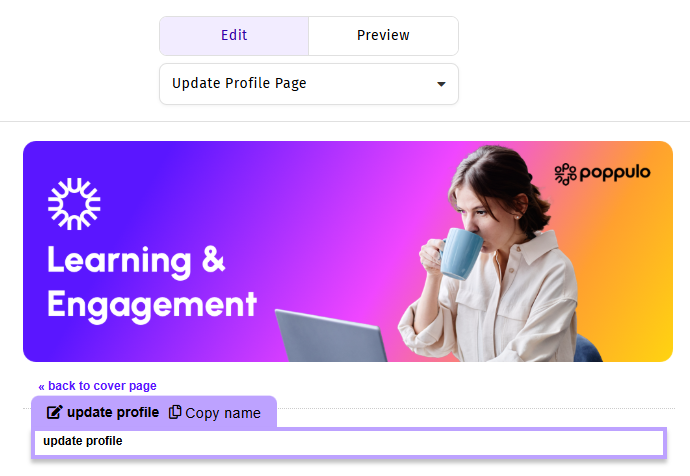
- Set Display Mode to Update Profile Form.
- Click Save.
Add a link to the Update Profile page
If you don't already have one, can also include a text link or button within your email that directs employees to the Update Profile page.
- Select the text or button you want to hyperlink.
- Create a hyperlink to an Internal Page or Article.
- From the Page drop-down list, select Update Profile Page.
- Save the hyperlink.
When readers click the link, they are taken directly to the Update Profile page.
Add the form to your website or intranet
You can also make the Update Profile form available from your website or intranet, allowing employees to update their information outside of a newsletter.
For detailed instructions, see
Add a Sign-up Form to your Newsletter or Website.
Example: Collect preferred language and time zone
A common use case is asking employees to update their preferred language and time zone.
This information can help you:
- Deliver translated communications in an employee's preferred language.
- Schedule communications based on employees' local time zones.
- Create a more personalized experience for a global workforce.
When configuring your form:
- Add a field that maps to the Preferred Language People field.
- Add a field that maps to the Time Zone People field.
- Use dropdown lists for both fields to ensure employees select valid values.
Example email copy
You can encourage employees to complete the form with messaging such as:
Help us personalize your communications. Please take a minute to update your preferred language and time zone so we can deliver information that's most relevant to you.Or:
We'd like to communicate with you in the language you prefer. Update your profile to select your preferred language and confirm your time zone.
Best practices
- Use dropdown lists instead of free-text fields to ensure data is easily used for search and targeting.
- Only ask employees to provide information that has a clear purpose.
- Explain how the information will be used so employees understand the benefit of updating their profile.
- Include the form in onboarding communications or periodically resend it to collect updated information from existing employees.
