The Edit View is where you will add content and customize the look of your email. Once you Create a New Email, you automatically land in this Edit View.
Toggle the Edit button to access The Edit View of your email.

Switch between pages of your email to view or edit the content. The Cover Page is what your employees see in the inbox. You can view article back pages (full story content) and other pages associated with your email.

This video will provide a quick overview of the Edit view, and you can view how to use features in detail below.
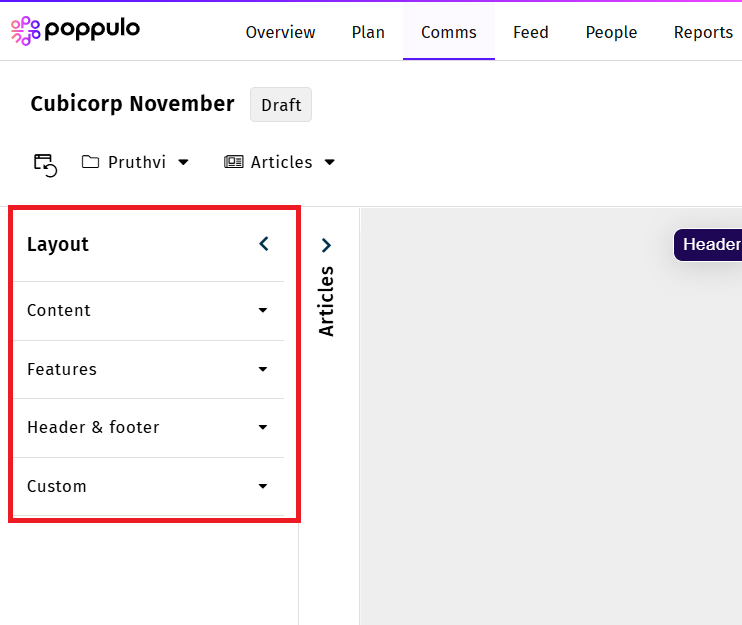
In the Edit View, you'll find a Layout menu on the left, which will allow you to add new sections and features to your email.
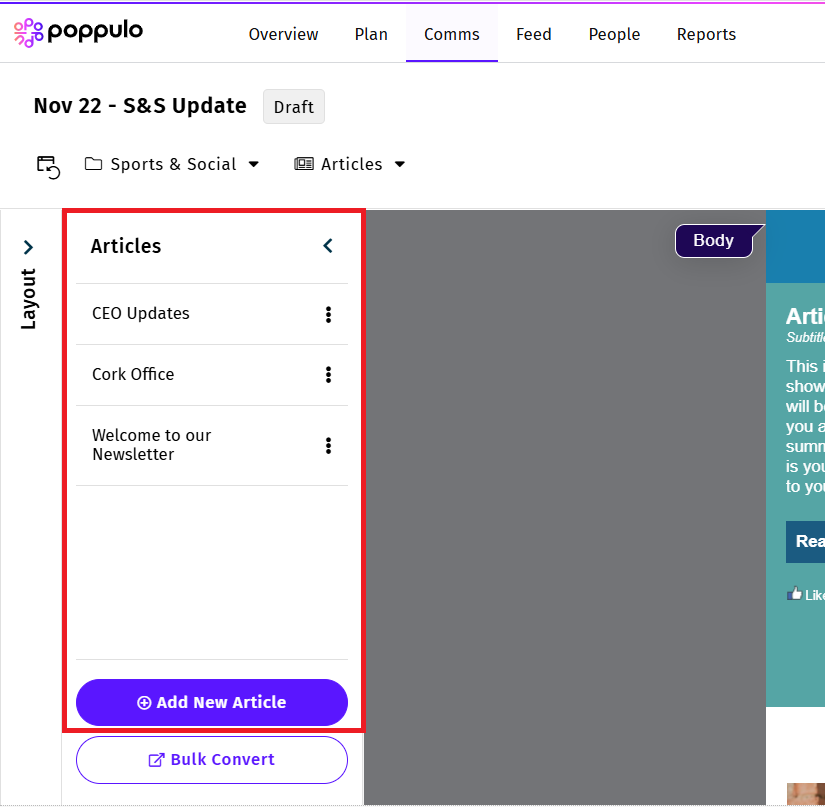
You'll also find a list of Articles on the left. You can drag and drop these Articles into your Newsletters. If you don't see any Articles in this list, it's time to Create an Article!
The Edit View allows you to:
To Drag and Drop Articles in your Newsletter:
-
Open the Edit View of your Email.

- Hover over the article you wish to move. The side menu bar appears.
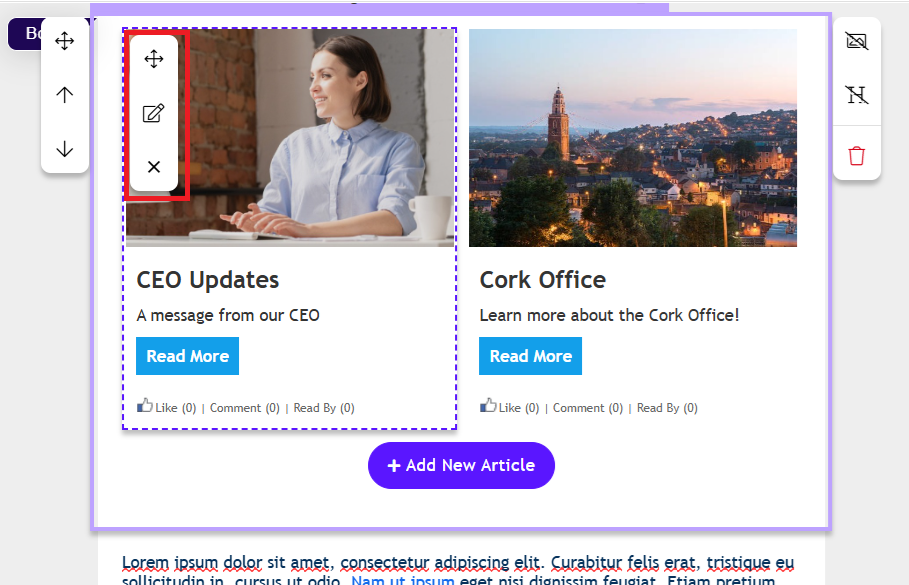
- Click and hold the Drag and Drop icon to whichever Article you'd like to move, and drag it to the desired area of your email.
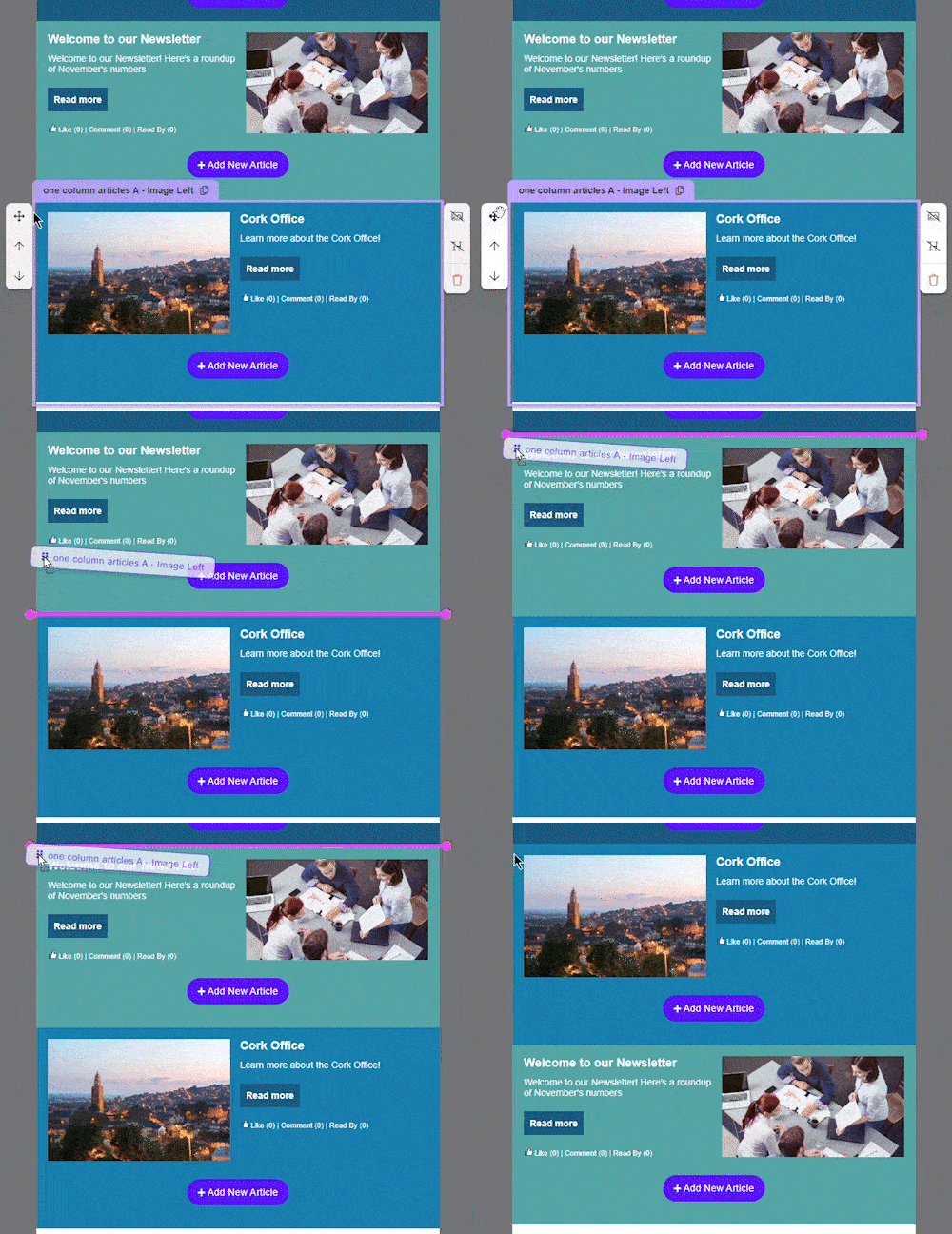
Note: The Article has moved position and now appears in a different Section.
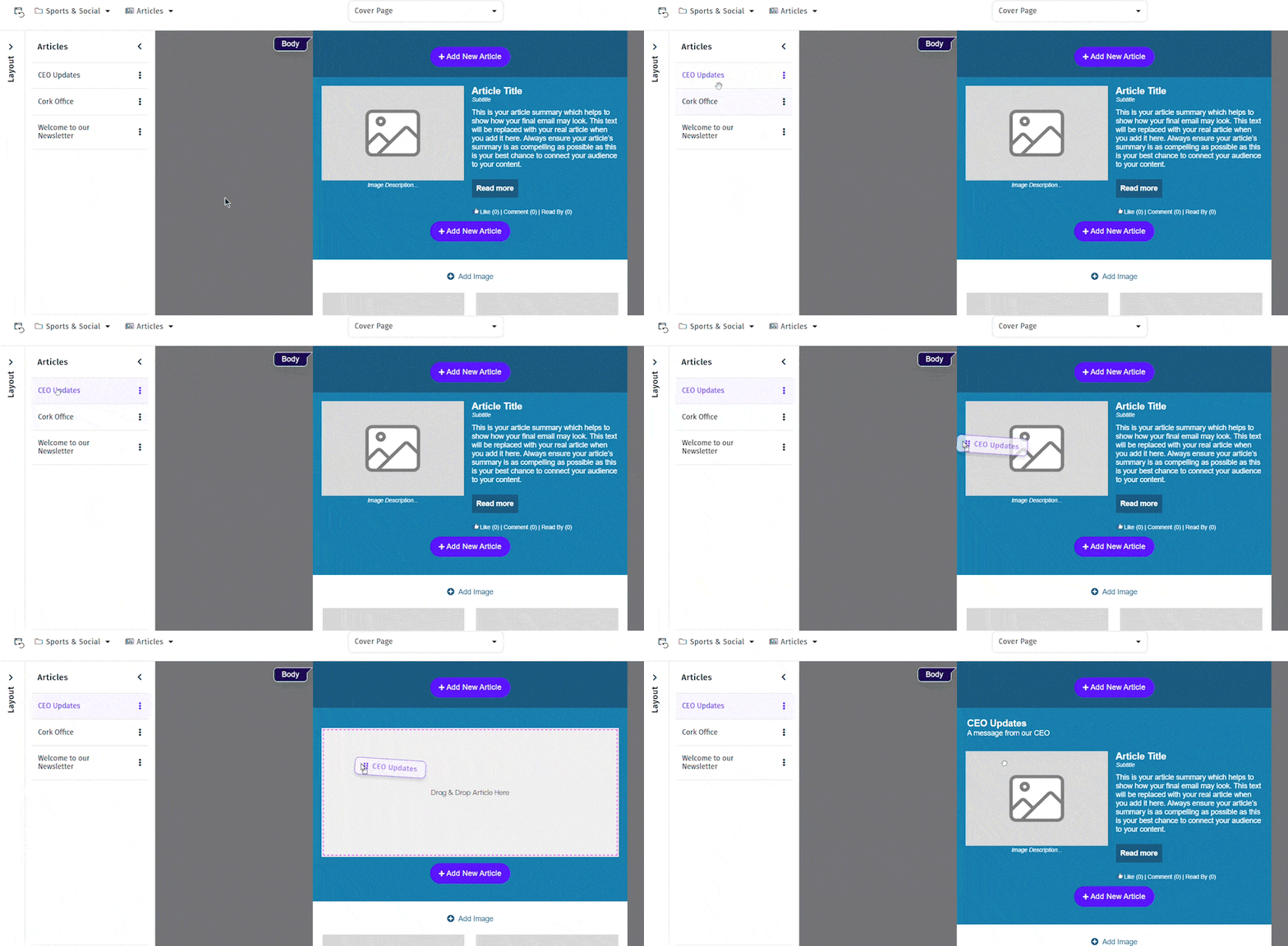
To Drag and Drop Articles from the Article List:
-
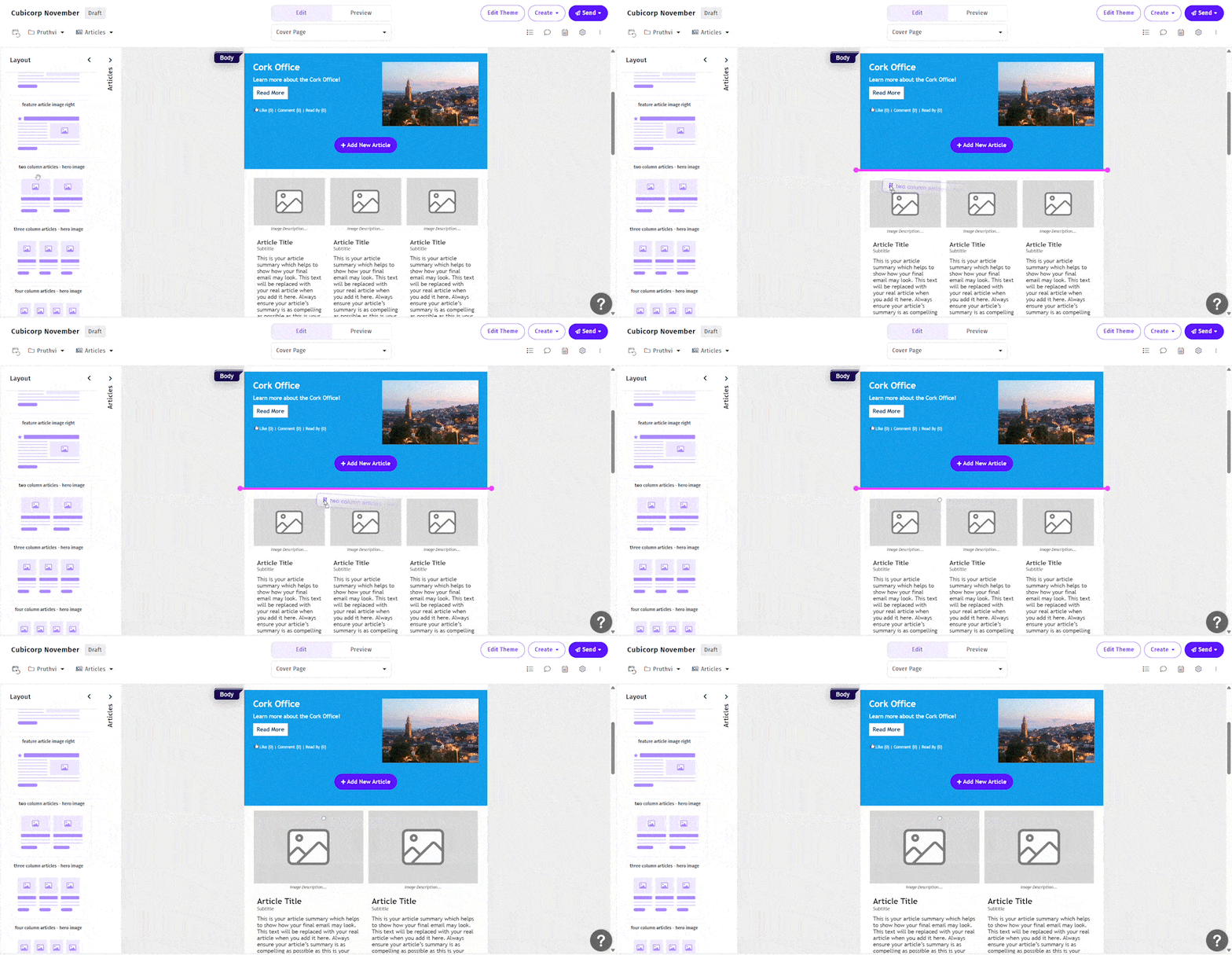
From the Articles list, click and hold an Article and drag it onto the desired Section.
To Delete an Article:
-
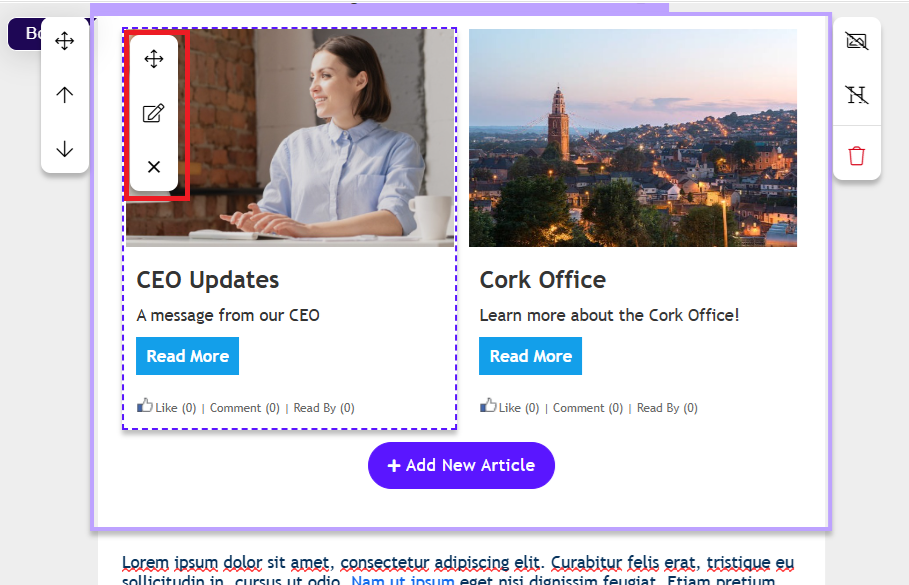
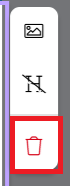
Hover over on the article you wish to delete. The side menu bar appears.
-
Click the delete icon  . The confirmation message appears.
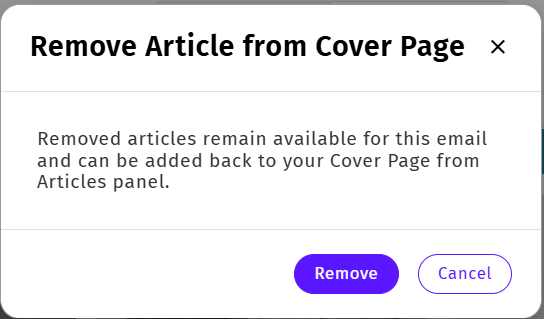
Note: The article you wish to delete will be removed from the email. However, the article exists in the Article list.
- Click Remove to delete the article from the Email.
To Drag and Drop a Section in your Newsletter:
- Open the Edit view of your email.

- Hover over the section you wish to move, the side menu bar appears.
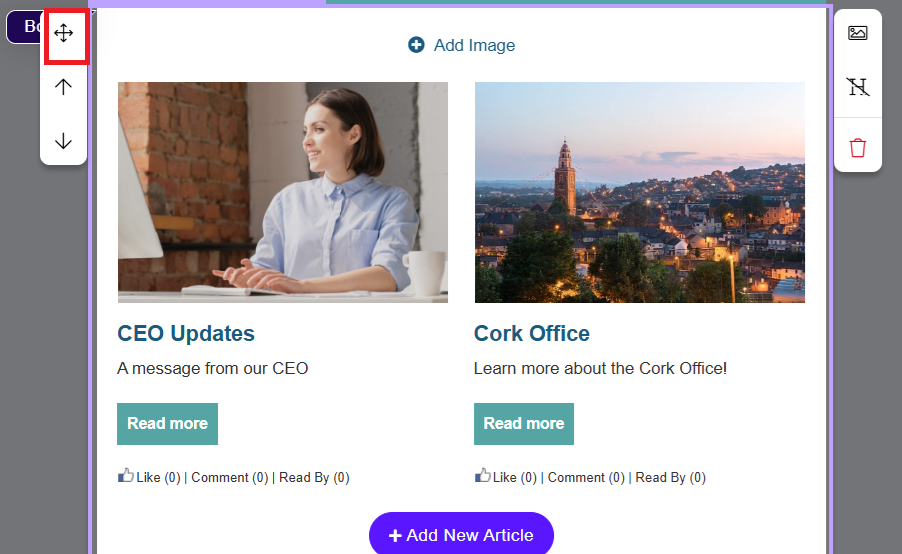
- Click and hold the Drag & Drop icon, and drag it to the desired area of your email.
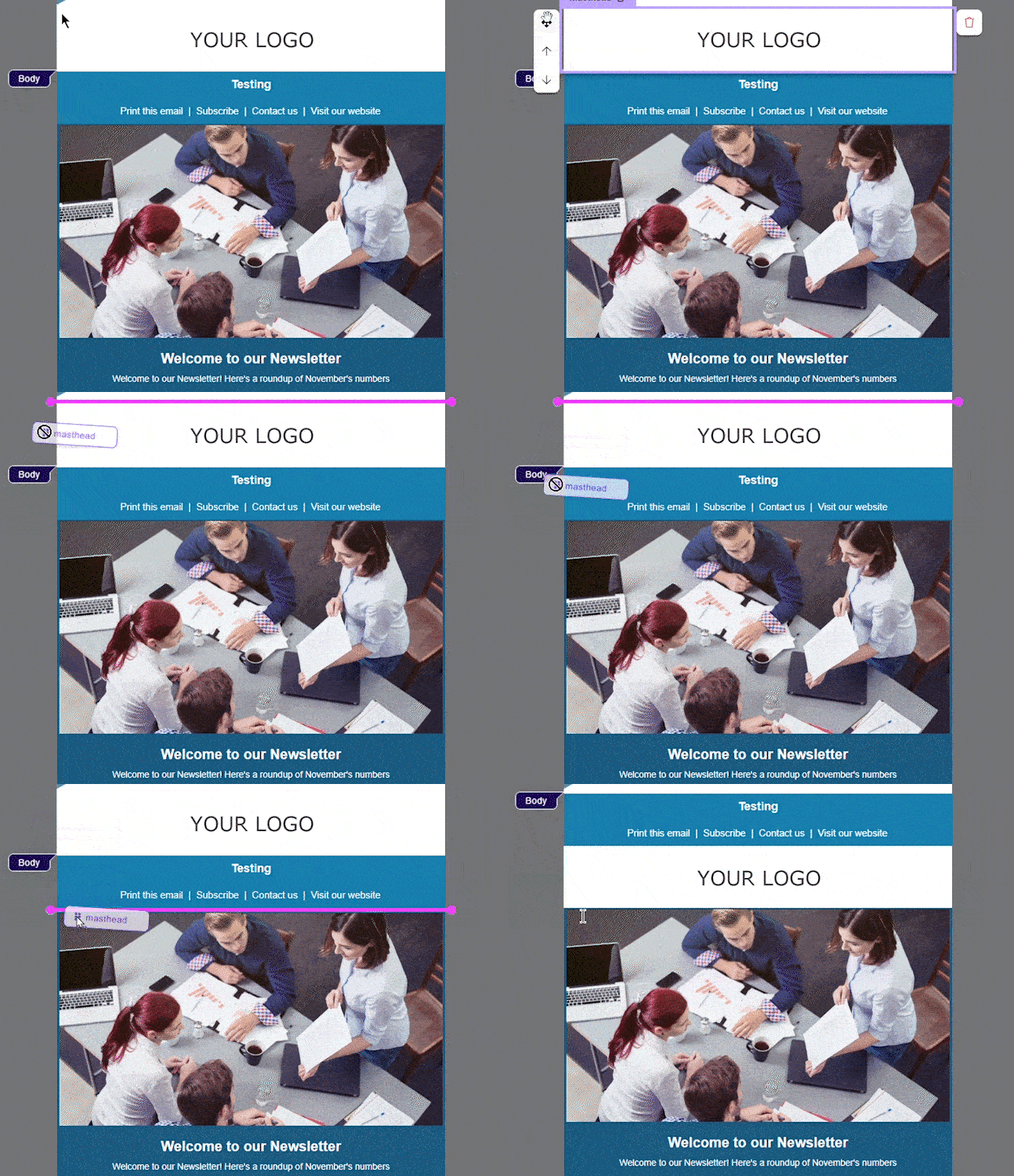
- Alternatively, you can also use the Up and Down arrow to move the sections either up or down as per your requirement.
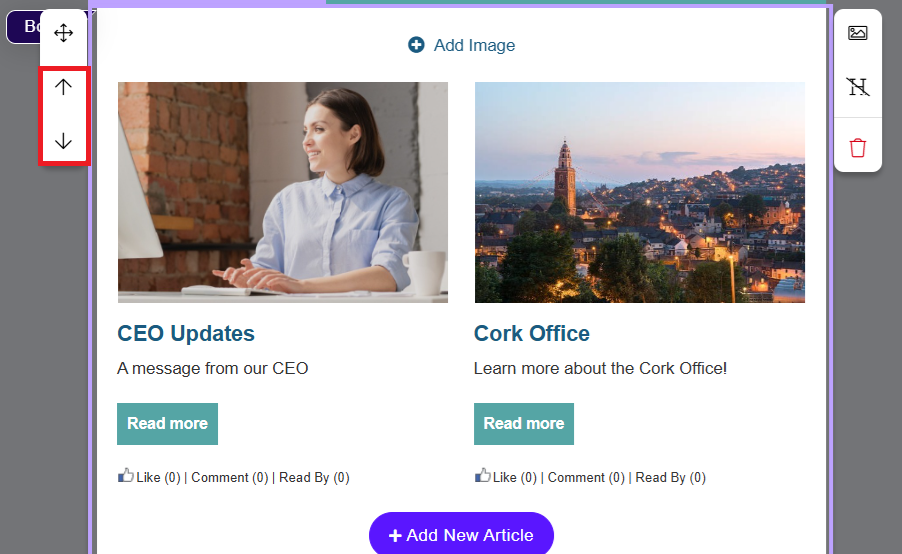
To Show or Hide a Section Title or Image:
- Hover over the Section. The side menu bar appears.
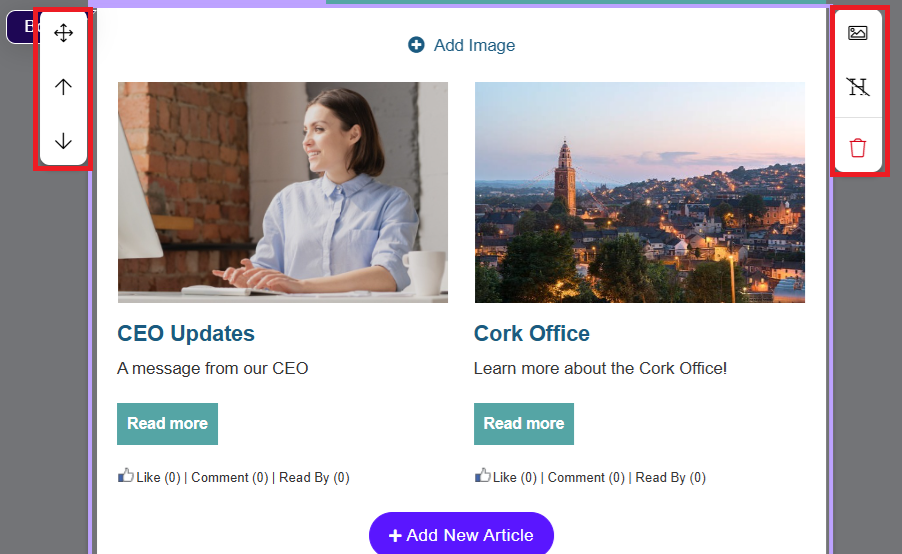
Note: The example given is to Show images and headers. Follow the same steps and click the same icons to Hide the section images or headers.
- Click the Section Image icon to turn on a section image. (Click the Same icon to turn it off.)
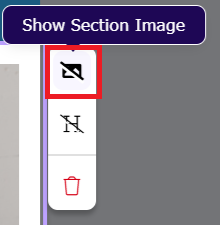
- Click the Add Image icon to add section image. The Add Image icon appears after you click the Show Section Image icon.
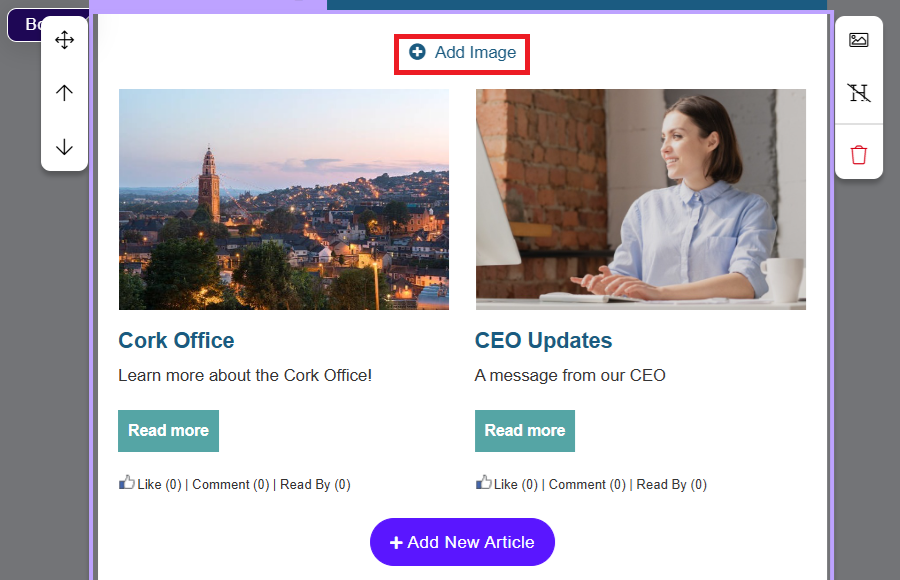
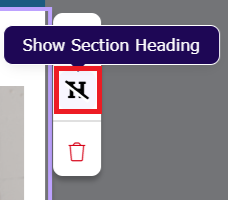
- Click the Show Section Heading icon to turn on a section title. (Click the Same icon to turn it off.)
- Click the Title of the section to edit the title. The Title section appears after you click the Show Section Heading icon.
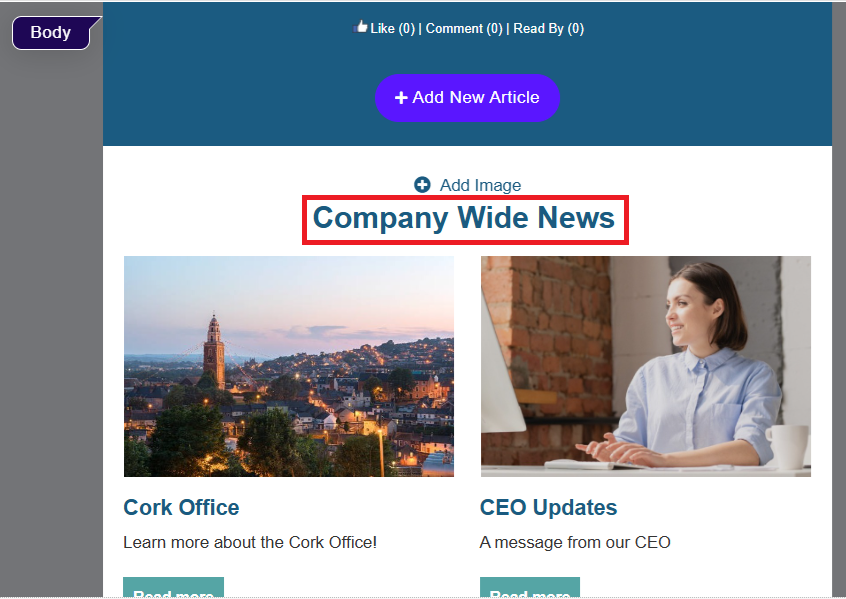
Note: You can style the Section Header using the Template Theme.
To Delete a Section:
- Hover over the Section you want to delete. The side menu bar appears.
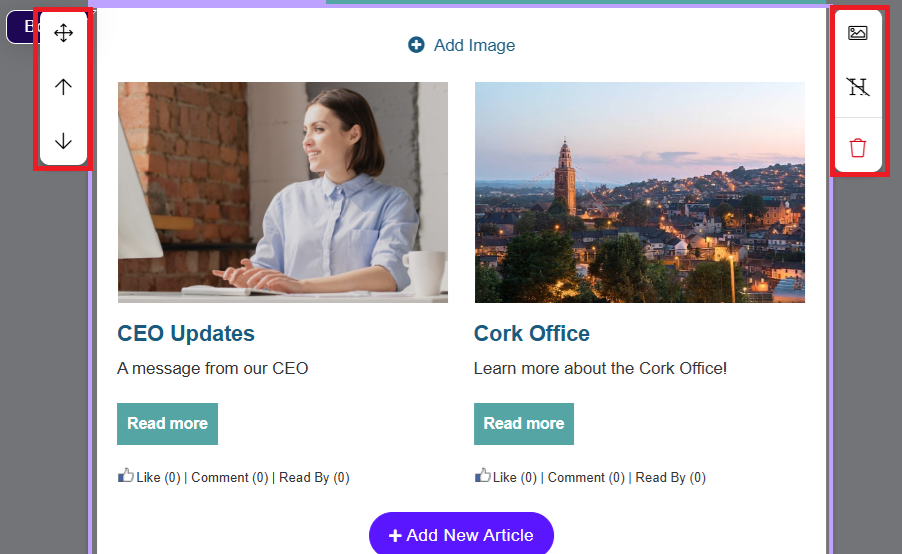
- Click the Delete icon to remove the Section.
Add a New Section or Feature to your Newsletter:
-
In the Edit View of your email, expand the Layout menu.
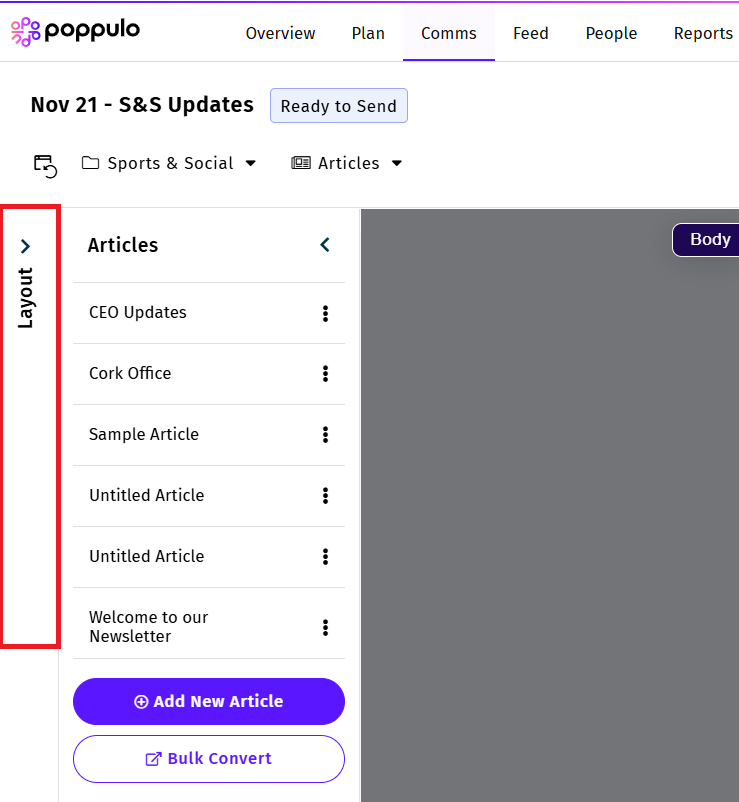
- The Layout menu has multiple options.
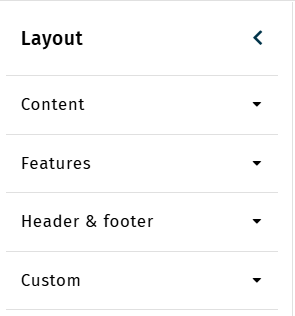
- Content: Options for content boxes or various article layouts.
- Features: Social Networks, Survey
- Header and Footer: Options for your header and footer layouts
- Custom: Divider Lines, Full Width Images, Buttons, and more.
- The Edit view of your email has indicators for the Header, Body and Footer areas of your email.
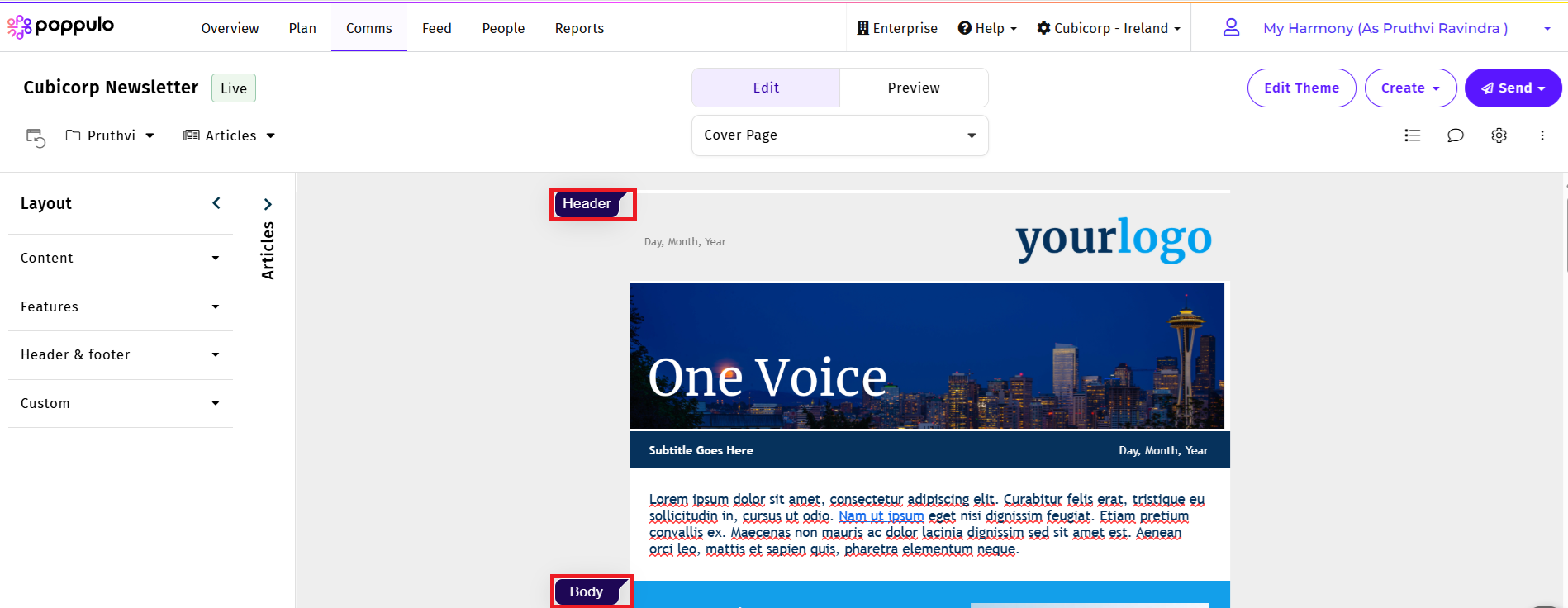
- Use the Header and Footer areas for new Header & Footer sections
- Use the Body area for Content items. You can add an Intro text section to the Header, but not articles.
- You can add Features to the Header, Footer and Body areas of your email
- Click on the section you want to add and drag it into your email.
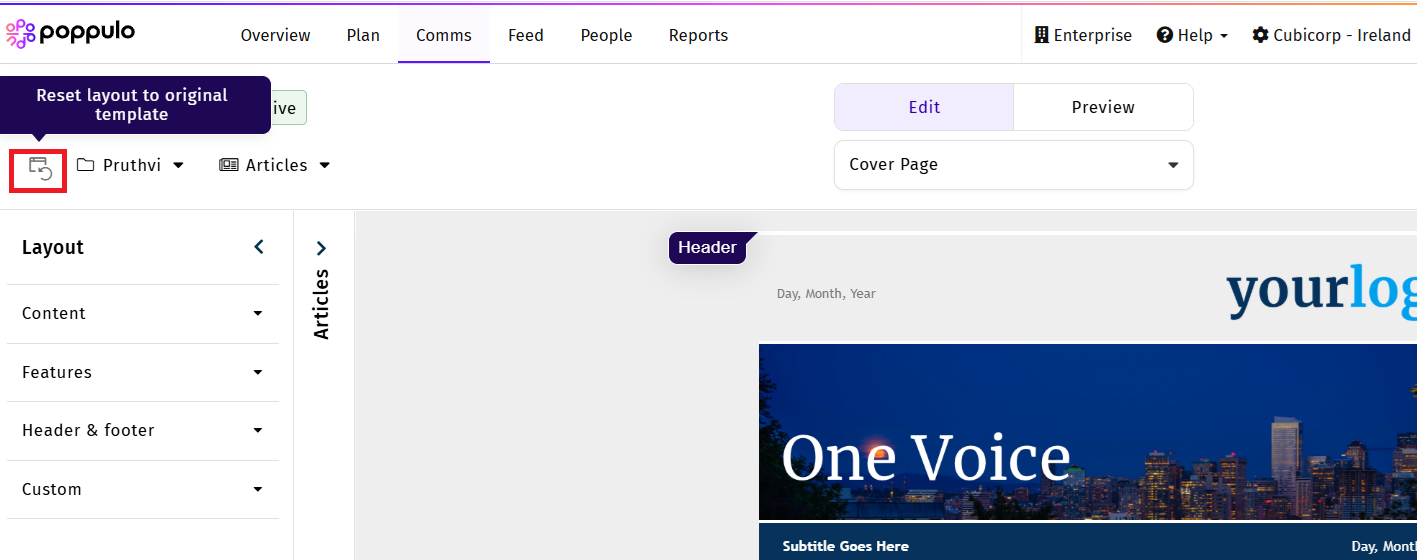
Reset your email Layout
- In the Edit View of your email, click the Reset Layout icon.
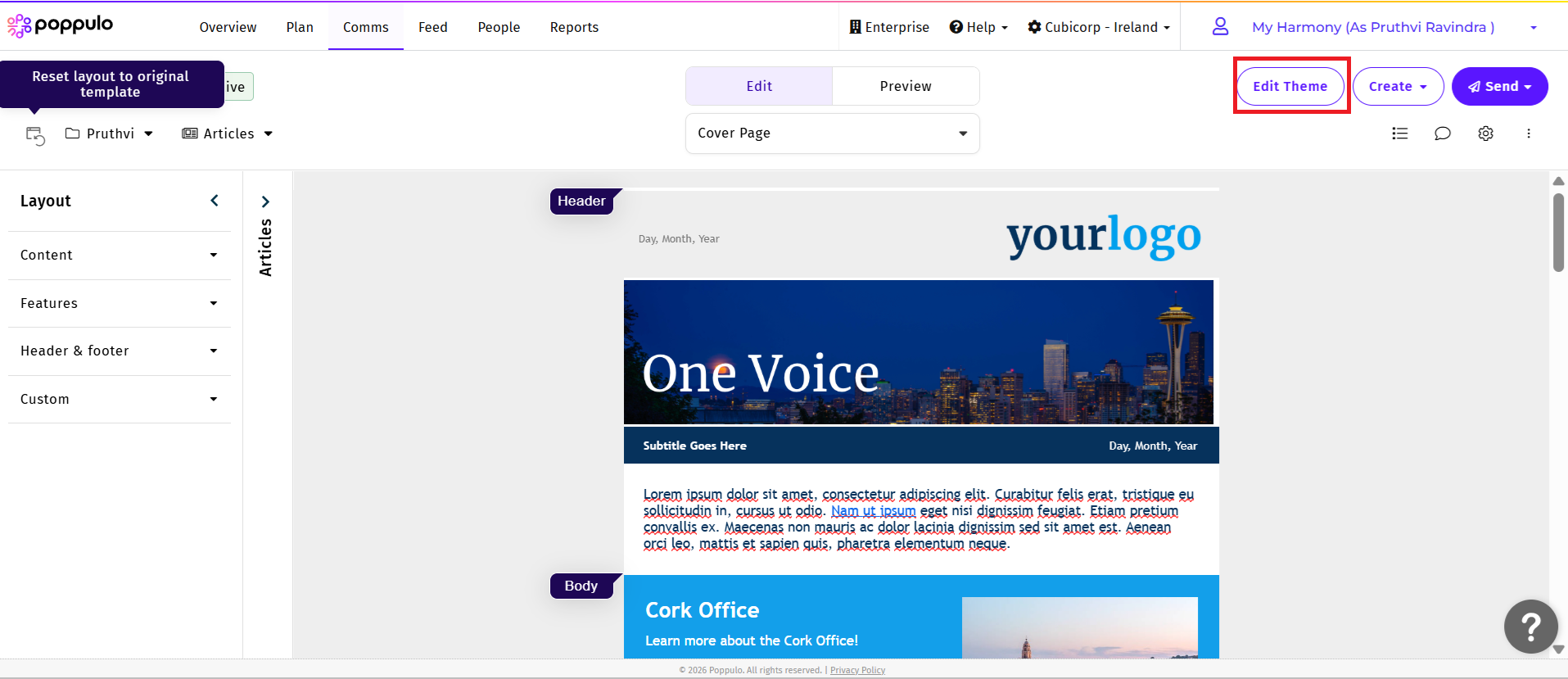
Edit the Template Theme
- In the Edit view of your email, click Edit Theme.
- Complete the steps to Edit the Email Theme.
