Putting your Articles in Draft is a good way to let your editor, or other members of your team, know that you're not finished working on an Article. Articles in Draft do not appear when Previewing your Email and will not appear when you Approve and Send your Email. Articles must be approved before you send. Use the instructions below to approve an Article.
To Approve an Article:
-
Edit the Email which contains the draft article that you wish to approve.
-
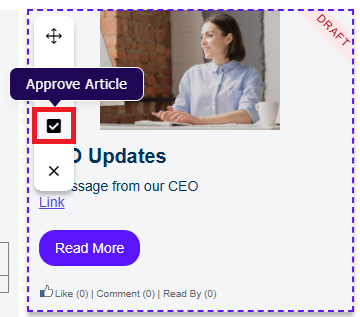
Hover over the draft article and click the approve icon from the side navigation bar.
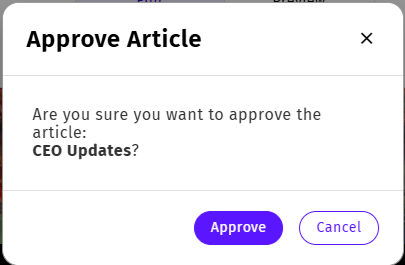
The Approve Article message box appears.
-
Click Approve. The status of the article changes from draft to approved. You will no longer see the draft stamp on the article. And, the Approve Article icon will not be available on the side navigation bar.
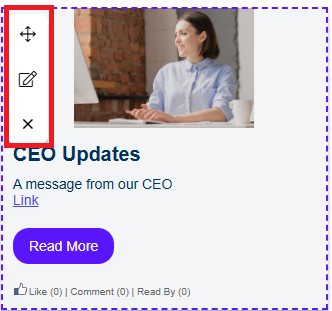
- Alternatively, you can also click the edit icon from the side navigation bar.
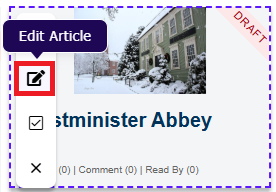
- On the Edit Article window, select Approved from Status drop down.
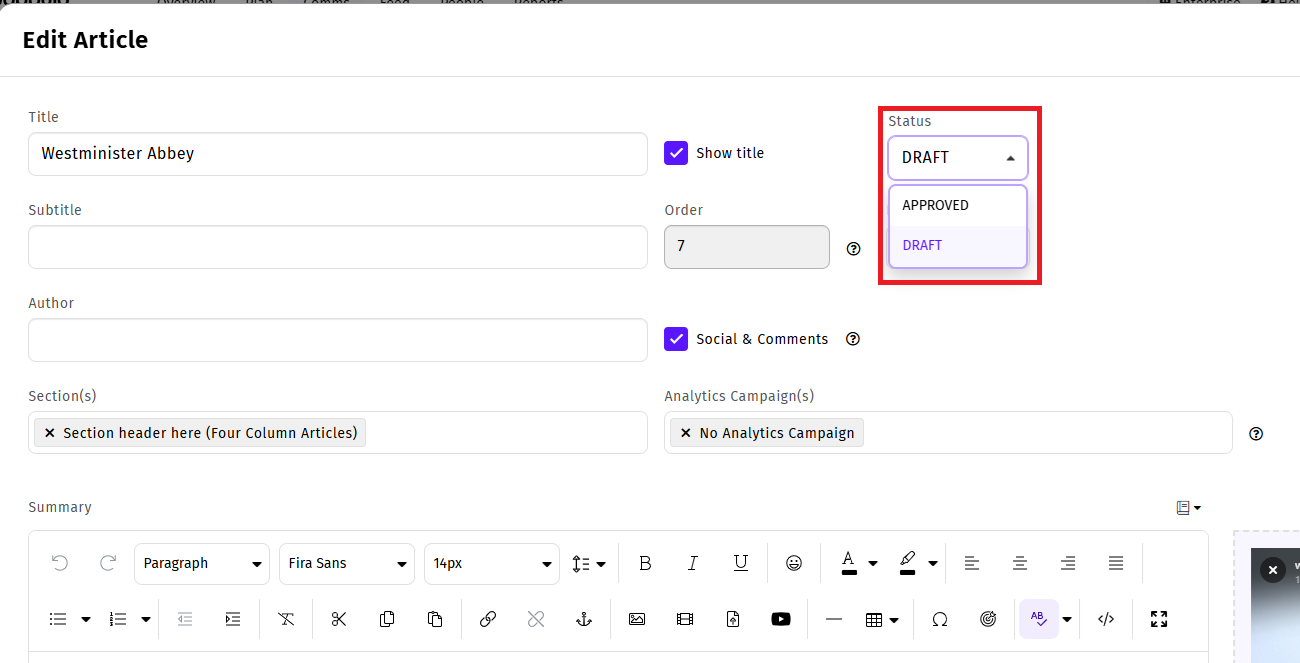
- Click Save. The article is changed from draft to approved status.
