Workflow reporting helps you monitor the progress and performance of a Workflow after it has started. In Report mode, you can view the status of each Workflow step, review metrics for individual stages, and access more detailed reporting for email steps.
View Workflow reports
- Open the Workflow you want to review.
- Turn on Report mode.
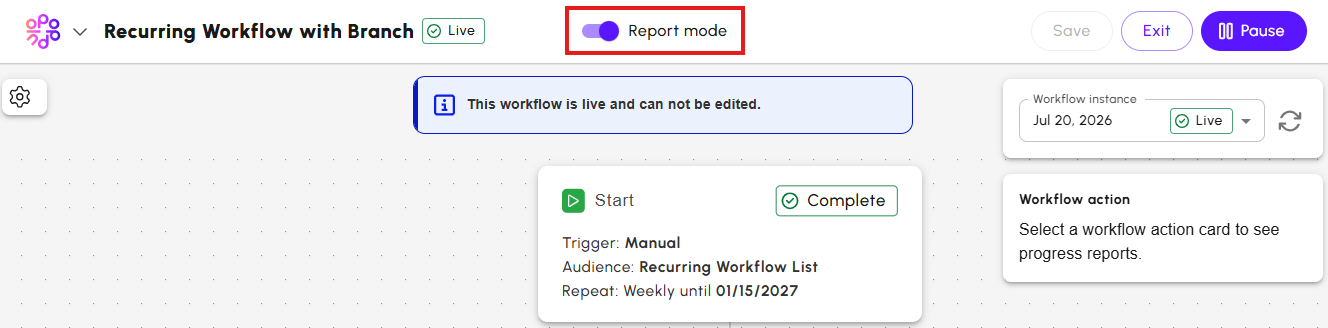
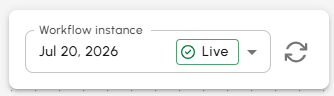
- If the Workflow has multiple occurrences, use the Workflow instance selector to choose the occurrence you want to review.
- Select a step in the Workflow.
The selected step is highlighted, and its details appear in the Workflow action panel.
To view the latest reporting data, select the
Refresh icon.

The Workflow diagram and Workflow action panel update with the most recent metrics for the selected Workflow instance.
Understand Workflow step status
Each Workflow step displays its current status so you can quickly see how the Workflow is progressing.
- Pending indicates that the step has not yet been reached.
- In Progress indicates that the step is currently being processed.
- Complete indicates that processing for the step has finished.
As recipients move through the Workflow, the status of each step updates automatically.
View Workflow action details
The information displayed in the Workflow action panel depends on the type of Workflow step you select.
Email steps
Selecting an Email step displays performance metrics for that email, including:
- Employees shows the number of employees who reached the selected Workflow step.
- Emails shows the total number of emails sent from the selected Workflow step.
- Delivered shows the percentage of emails that were successfully delivered to recipients.
- Opened shows the percentage of delivered emails that recipients opened, helping you measure engagement with the email.
- Bounced shows the number of emails that could not be delivered to recipients.
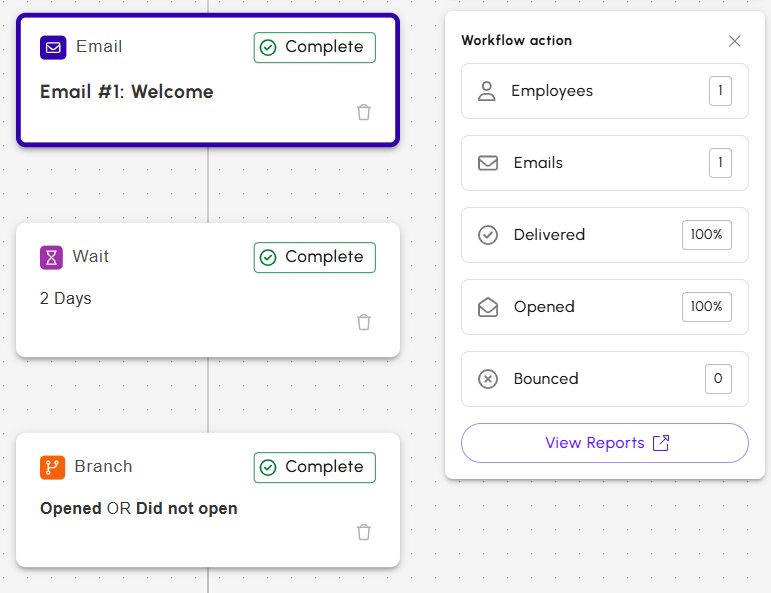
To view more detailed reporting for the email, select View Reports. This opens the email performance report for the selected Workflow email.
Wait steps
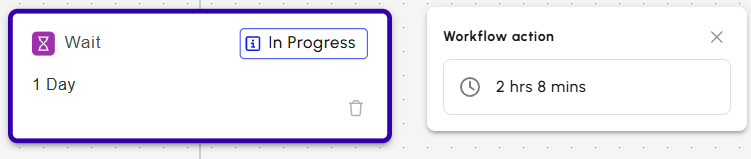
Selecting a Wait step displays information about the wait period for the selected Workflow instance. For example, if recipients are currently in a wait stage, the panel shows the remaining time before the Workflow continues to the next step.
Branch steps
Selecting a Branch step displays the results for each branch path, showing how recipients progressed through the decision point.
Depending on the branch conditions, the Workflow action panel displays the number of recipients who followed each path. For example, an email engagement branch displays the number of recipients who Opened the email and those who Did not open it.
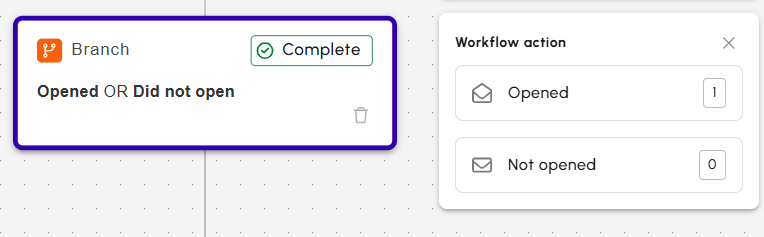
Note: The metrics displayed depend on the type of branch selected. Different branch conditions may display different branch outcomes.
Analyze Workflow email performance in Advanced Analytics
Advanced Analytics provides reporting across multiple Workflows, Segments, and other filters.
Workflow filters allow you to view only emails that are part of a Workflow or to report on a specific Workflow, making it easier to analyze performance over time.
For more information, see Advanced Email Reports: Workflow Analytics.
