Feature Availability
This feature is only available on certain Poppulo packages. For more details, see our packages and pricing page
Workflows allows you to create fully automated, multi-touch communication journeys throughout the employee lifecycle. With Workflows, you can schedule emails and apply activity-based triggers to deliver relevant content at the appropriate time.
You can use Workflows for:
- Onboarding new employees,
- Increasing engagement before and after events,
- Driving change communications at the right pace,
- Reminders when actions are due,
- Improving employee experience by retargeting only non-responders,
- And, any recurring updates that need to go out on a schedule — without manual effort.
With Workflows, your audience get the information they need exactly when they need it, creating a more connected experience across your organization.
Accessing Workflows
On the
Workflows screen, you can:
- View existing workflows
- Edit draft workflows
- View, Pause, Resume or Stop live workflows
- Create new workflows
- Delete workflows
- Clone the workflows
To access Workflows,
- From the Home page, click Comms tab.
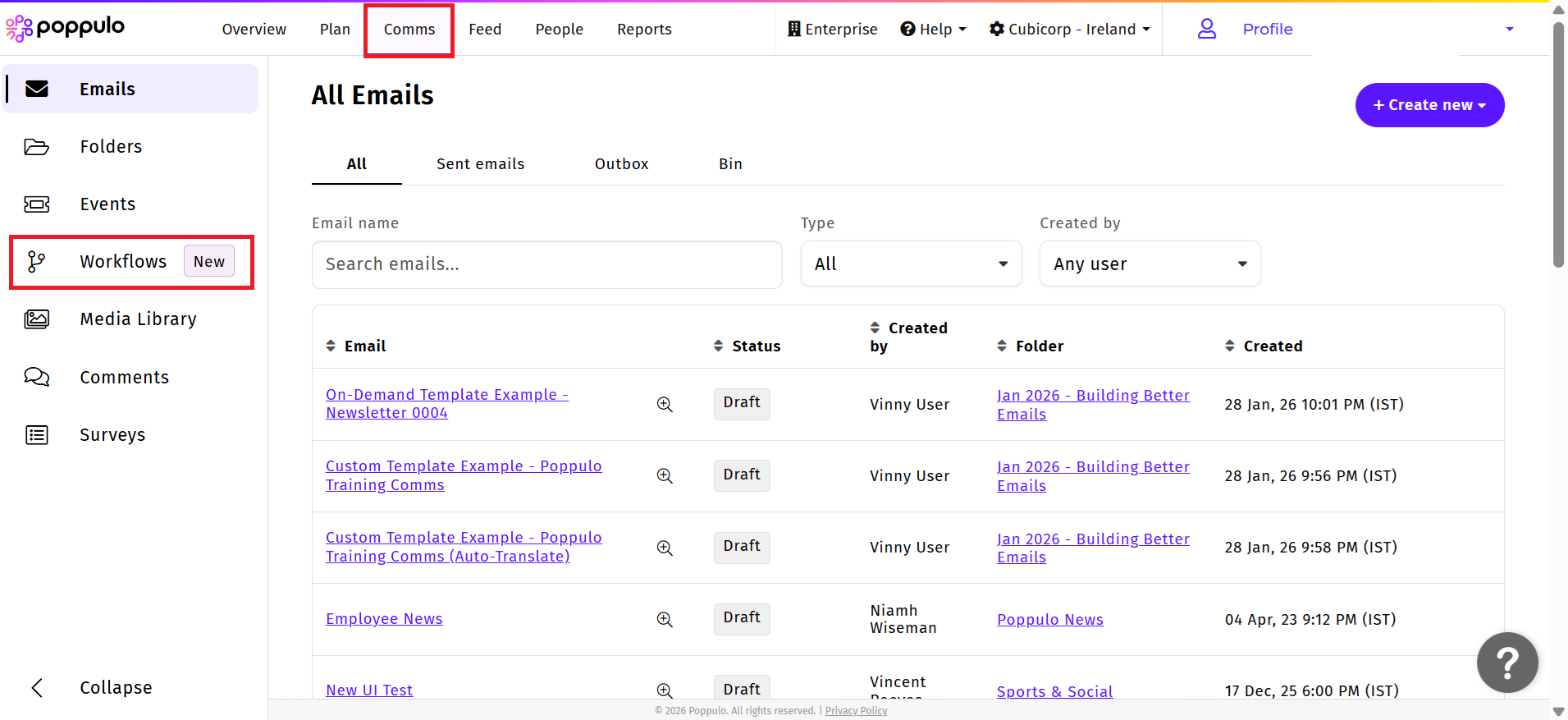
- From the left-hand navigation panel, select Workflows. The Workflows screen appears.
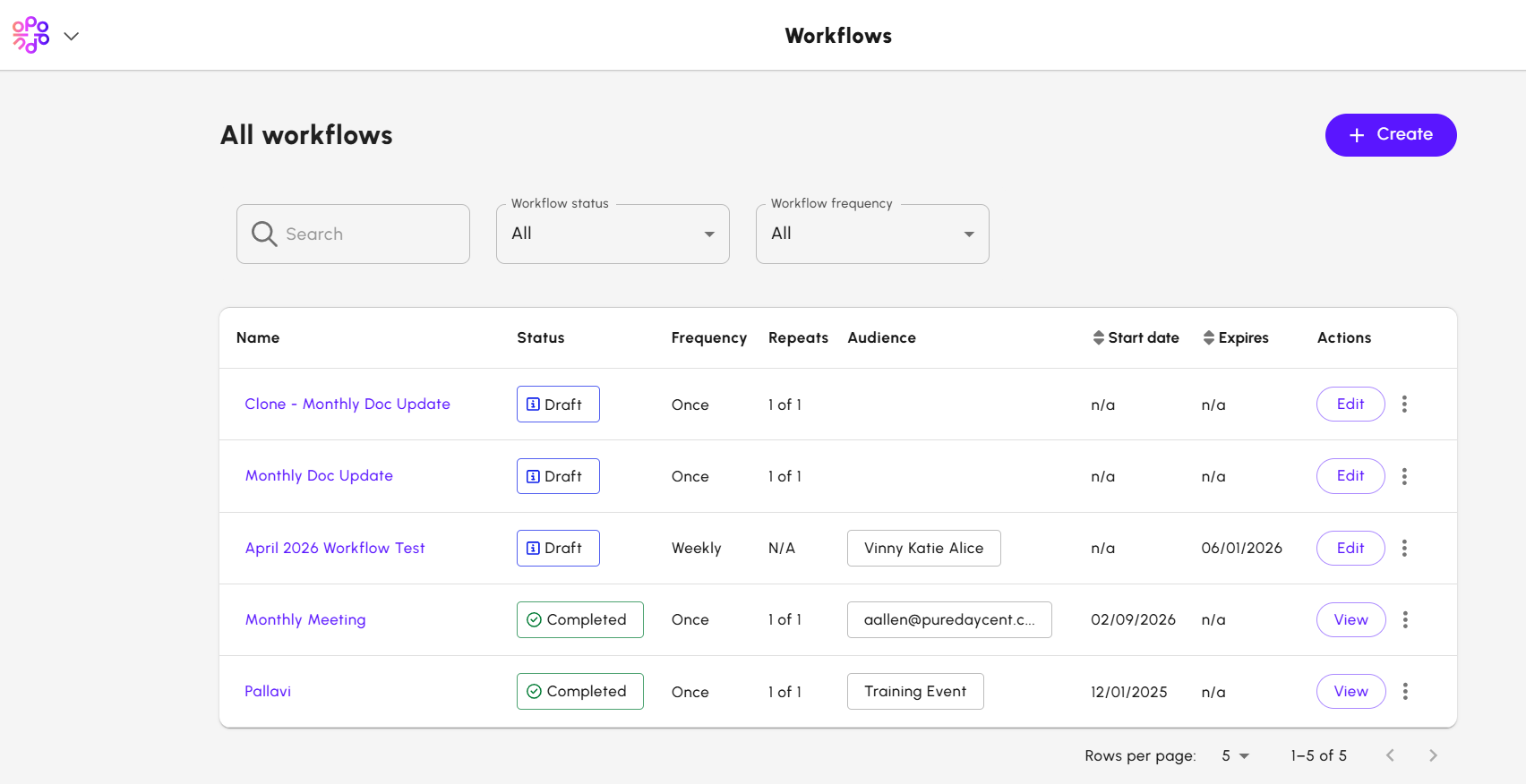
- From the search bar, enter the name of the workflow to view a specific workflow.
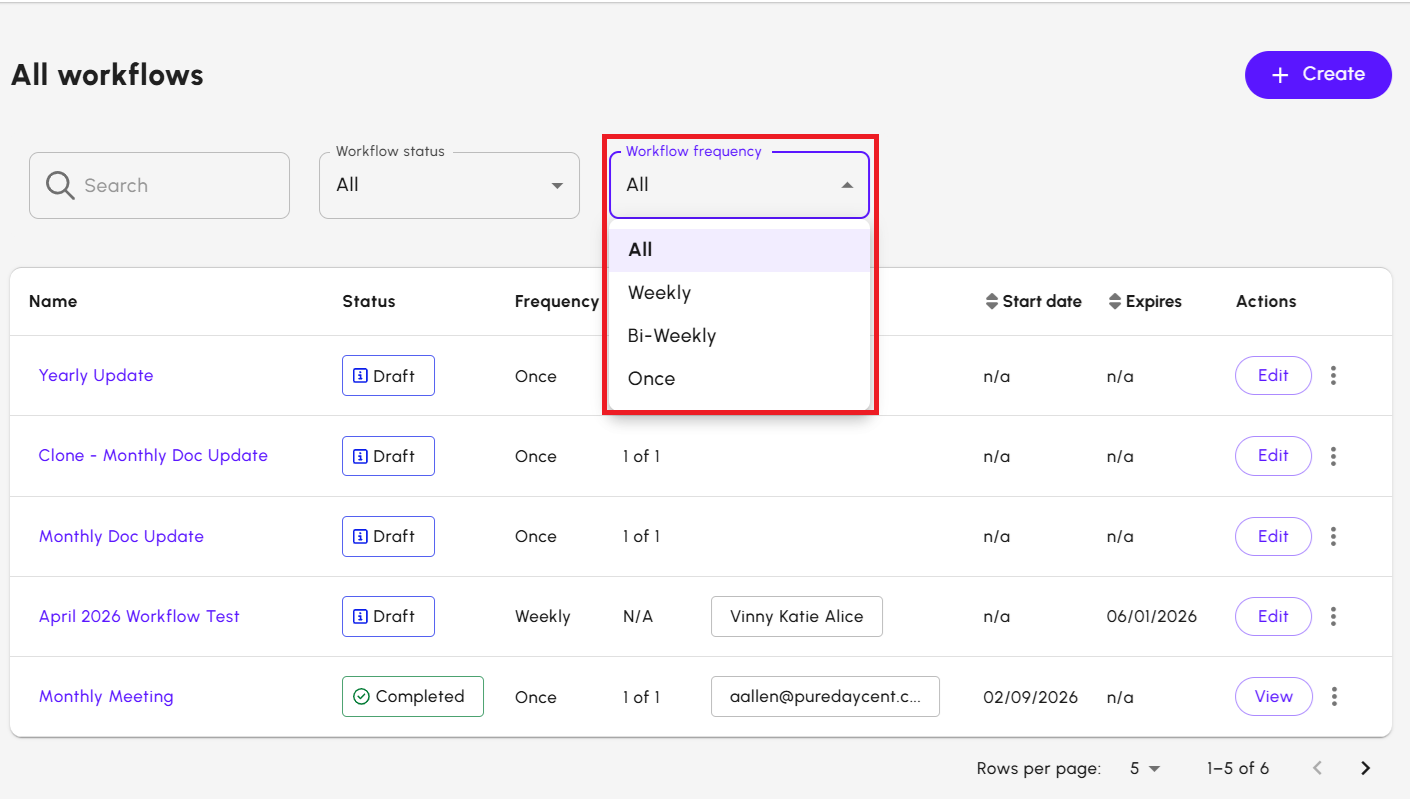
- From the Workflow status drop down, you can filter the workflows by status. The available status are,
- All: Displays all workflows
- Draft: Displays workflows in draft status
- Scheduled: Displays workflows scheduled for a future date and time
- Pending: Displays workflows awaiting approval
- Live: Displays workflows that are currently active
- Completed: Displays approved workflows that are not live
- Stopped: Displays workflows that have been stopped
- Delivery Error: Displays workflows with delivery issues
- System Error: Displays workflows with system errors
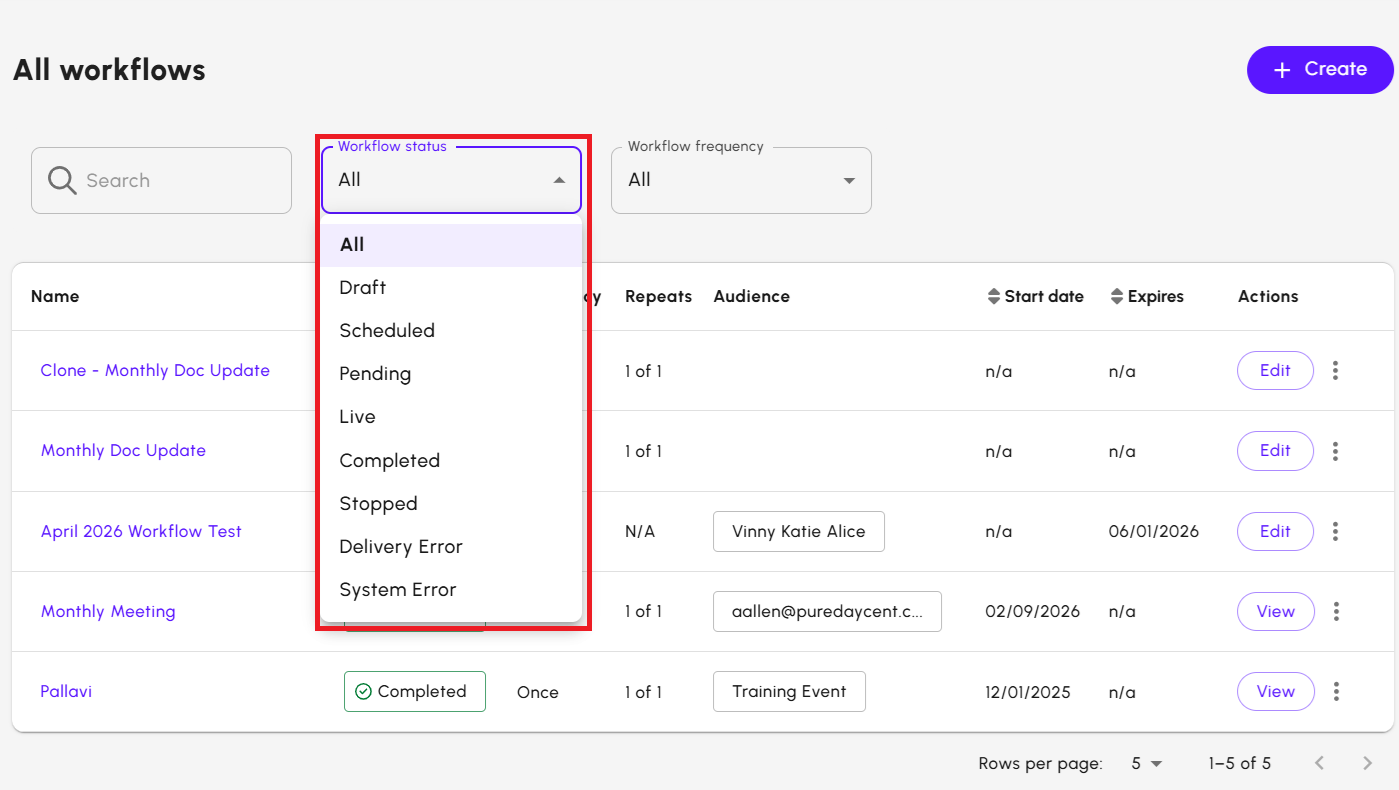
- From Workflow Frequency drop down, you can filter the workflows based on the frequency status. The available options are:
- All: Displays all workflows
- Weekly: Displays workflows scheduled to recur weekly
- Bi-Weekly: Displays workflows scheduled to recur every two weeks
- Once: Displays one-time workflows
- Click Edit to modify the workflow. You can edit only workflows in Draft status. The workflow builder screen displays.

- Click View to view the workflow in the Workflow builder screen. The screen appears in read-only mode.

- From the three dots menu, select the action you want to perform:
- Pause to temporarily stop a live or scheduled workflow.
- Resume to continue a paused workflow.
- Stop to permanently end a running workflow.
- Delete to remove a workflow that is no longer needed.
For more details, see Manage a Workflow.
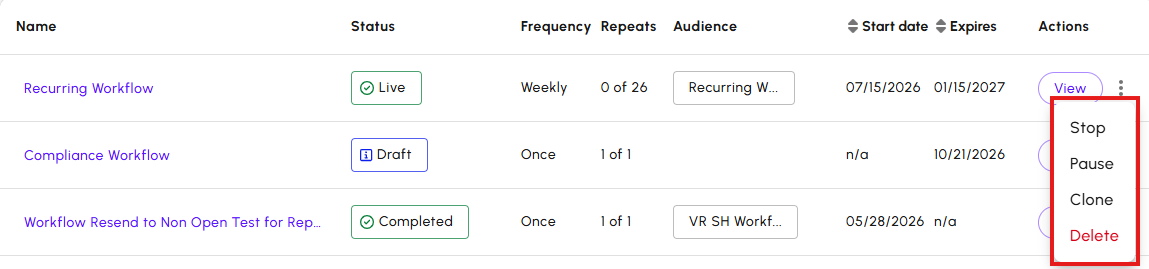
- From the three dots menu, select Clone to create a clone of the selected workflow.
- Click Create to create a new Workflow.
Monitor Workflow performance
After you start a Workflow, you can monitor its performance using several reporting options. These reports help you understand how recipients progress through the Workflow and how individual email messages perform.
You can review Workflow performance in the following ways:
- Workflow stage metrics to view performance for each step in a Workflow, including employee counts and email metrics such as delivered, opened, and bounced.
- Mailing performance reports to review detailed reporting for individual emails sent as part of a Workflow.
- Advanced Analytics to analyze Workflow emails across campaigns using Workflow filters available in Email Performance reports.
For more information, see Workflow Reporting
Integrate Workflows with external systems
Workflows can integrate with external systems through Workato to automate employee journeys based on events that occur outside of Poppulo.
For example, you can use the Cornerstone LMS integration to pause a Workflow until an employee completes a training course. Once the completion event is received, the Workflow automatically progresses to the next step without requiring manual intervention.
The Workato integration framework can also support other business systems that provide compatible events, enabling you to automate communication journeys based on employee actions such as training completion, event attendance, or other business processes.
For information about supported integrations and configuration requirements, please speak to your Poppulo Customer Success Manager.
