You can view the results from an import of employee data in the People area of your account. From here, you can see how many People were added, and whether there were any duplicate or invalid email addresses that weren't imported.
You can view the results of an Import on the final page of the import, or by following the instructions below.
To View the Results of a Employee Import:
-
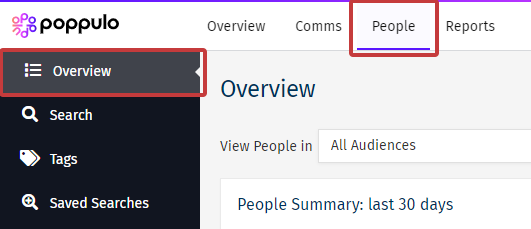
In the People area of your account, choose Overview from the menu on the left.
-
In the Recent Imports section, locate the import you want to review and select See Results in the Actions column.
By default, the table displays the most recent imports. If you need to find a specific import, you can:
- Filter the list using the From date and To date fields.
- Clear the date filters to display all recent imports or perform a new date range search.
- Sort columns in ascending or descending order by selecting the column heading.
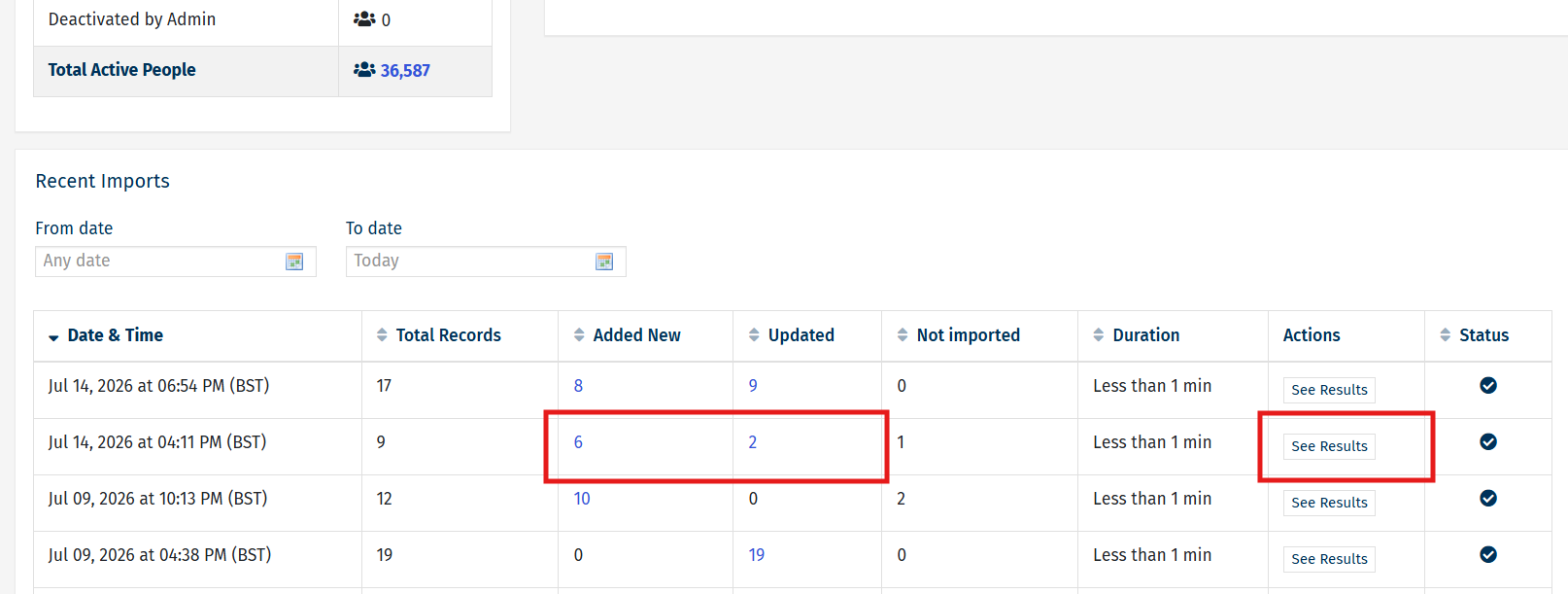
Note: Click the number in blue to review the specific People who were Added New/Updated in the Import.
-
The Import Details screen shows you the all the information about your chosen import.
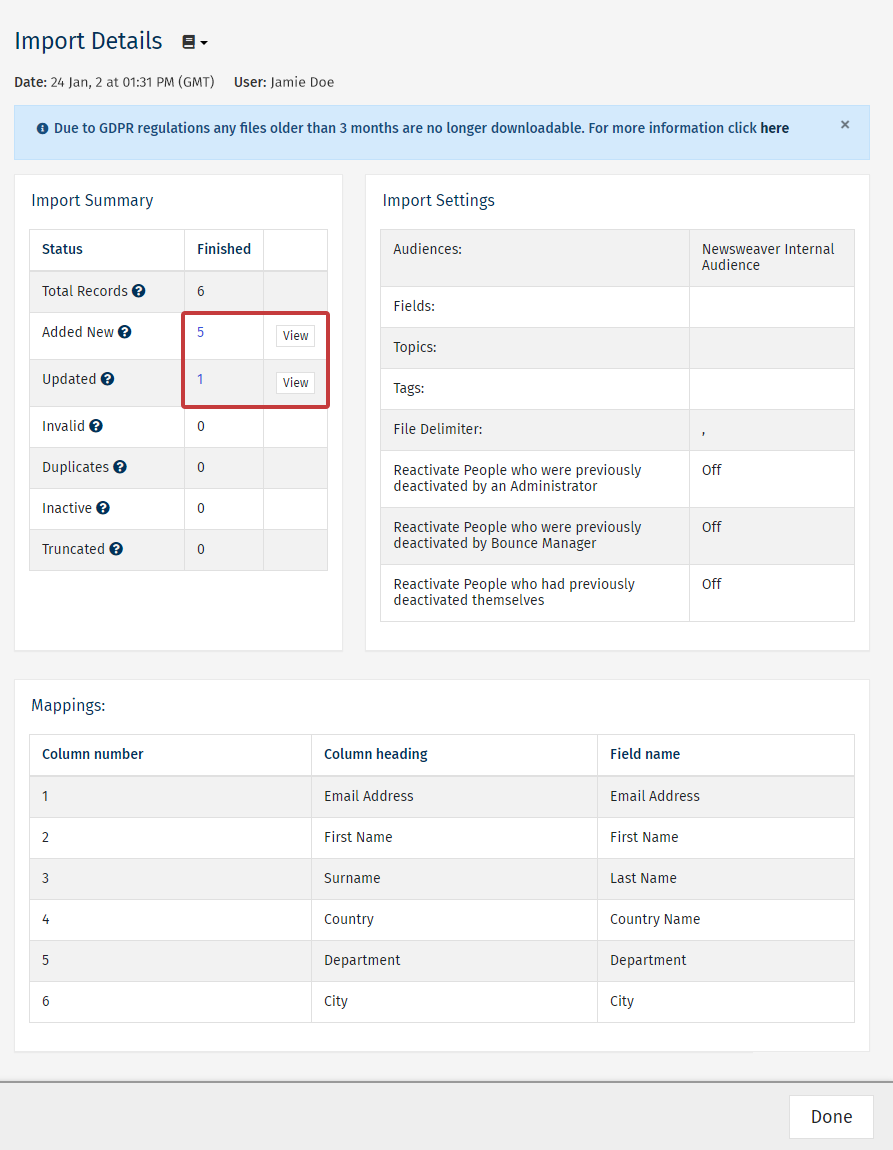
Note: Click the number in blue to review the specific People who were Added New/Updated in the Import.
- Import Summary: Includes the total employees, new or added People, and the status of the upload.
- Import Settings: Includes information around Tags, Fields and Audiences defined during the import.
- Mapping: Includes the Poppulo Harmony Data Field mapping from any columns included when you Manually Import or Import using a Data Sync.
