Feature Availability
This feature is only available on certain Poppulo packages. For more details, see our packages and pricing page
Poppulo AI for Content Creation helps you draft, refine, and improve internal communications using AI powered by your organization's existing communication content.
Poppulo AI for Content Creation is available in the Poppulo email editor, enabling users to generate and refine content directly within the email creation workflow. It can also be used as a Microsoft Word add-in to support early-stage drafting.
Getting Started
With Poppulo AI, you can quickly generate first drafts, refine existing communications, and create content aligned to your organization’s tone and style. By starting with an AI-generated draft instead of a blank page, you can save time and accelerate content creation.
To get started, try prompts such as:
- “Create an announcement about our upcoming benefits enrollment period. Use our past communications to match our usual tone and structure.”
- “Review this draft and tell me if it matches our usual tone and structure.”
- “Draft an article in the voice of our CEO about our H2 results”
- “Shorten this communication for frontline employees.”
- “Create a follow-up email reminding employees to complete training.”
- See more example prompts >
For the best results, keep prompts specific and include details such as audience, tone, communication goal, format, or key points you want included.
Use voice to enter a prompt
You can use voice input to enter a prompt in Poppulo AI instead of typing it. Select the
microphone icon in the prompt field and allow microphone access in your browser if prompted. As you speak, your words are transcribed into the prompt field. When you've finished, stop the recording, review or edit the transcription as needed, and submit your prompt.
Note: Voice input is currently available in English only and near real-time transcription is supported in Chrome and Safari.
Use Poppulo AI in the email editor
Poppulo AI in the email editor enables you to generate and refine content directly within the email creation workflow.
- In the Edit view of an email, select Poppulo AI from the top navigation.
The Poppulo AI pane opens on the right.
- To generate content, select one of the following options:
- Create new communication - use when you are starting from scratch or have only a rough idea. It quickly generates a first draft based on a simple prompt.
- Review communication - use when you already have content and want to improve it. It’s ideal for refining tone, simplifying language, reducing repetition, and aligning the message with your organization’s voice.
- Or Tell Me What You Need! - use if you have specific query.
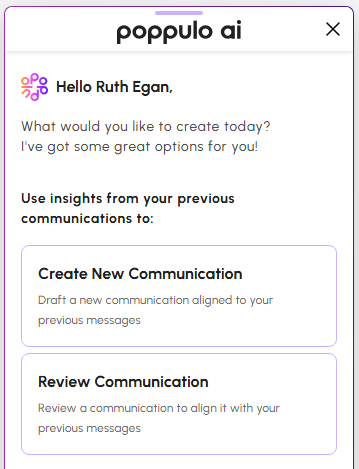
To generate content using Create New Communication
- Select Create New Communication. You are prompted to provide additional details about your requirement.
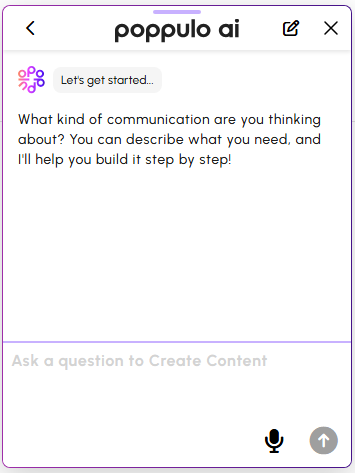
- Enter your query in the prompt area. The AI generates content based on your input.
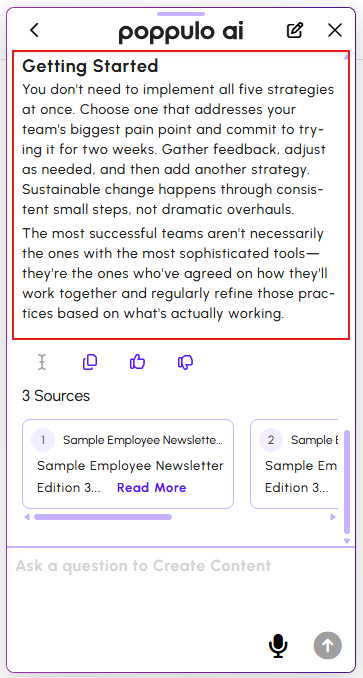
- Review the generated content in the pane.
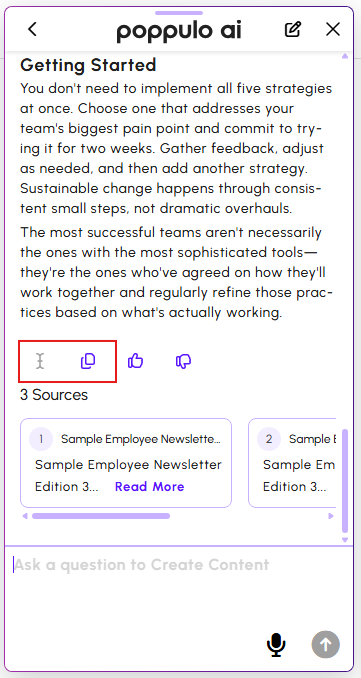
- Click Copy to copy the content and paste it into the email text area.
- If you have already selected a specific text area in the email, click Insert to place the content directly.
To generate content using Review communication
- Select the content in your email and choose Review communication. When you select the content, the Use this selection as reference option is automatically enabled.
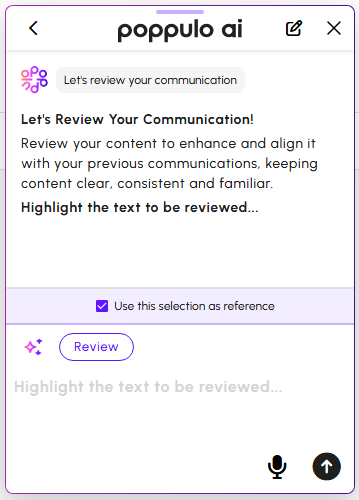
- Click Review in the prompt area. Poppulo AI analyzes your content and generates an improved version.
- Alternatively, copy content from the email and paste it into the prompt area, then click the arrow button to review it.
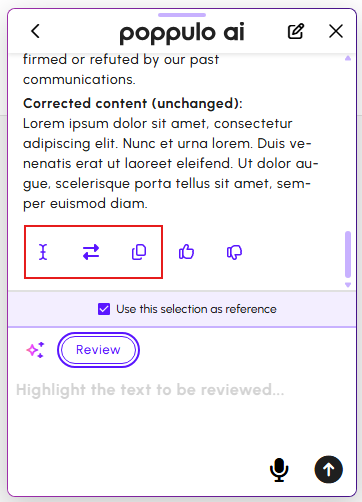
- After the review is complete, choose one of the following actions:
- Insert: Insert the reviewed content directly into the selected text area.
- Replace: Replace the highlighted email content with the reviewed version.
- Copy: Copy the reviewed content and paste it into the email.
Use Poppulo AI in Microsoft Word
Poppulo AI for Content Creation add-in helps you generate and refine content within Microsoft Word.
Launch the Create Agent add-in
Ensure your IT team has installed the
Poppulo Create Agent Word Add-in in Microsoft 365. A detailed installation guide can be provided on request.
- Open Microsoft Word document.
- Select My Add-ins.
- Select Poppulo Create Agent. The Create Agent pane opens and displays the welcome screen.

- Click Sign in with Microsoft.
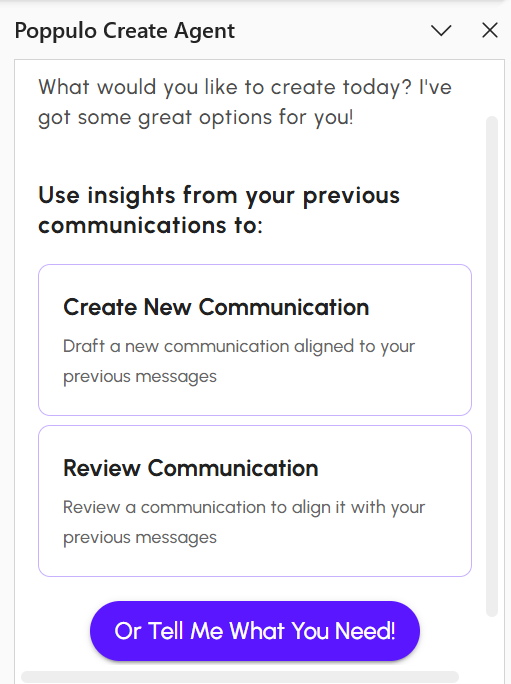
- To generate content, select one of the following options:
- Create new communication - use when you are starting from scratch or have only a rough idea. It quickly generates a first draft based on a simple prompt.
- Review communication - use when you already have content and want to improve it. It’s ideal for refining tone, simplifying language, reducing repetition, and aligning the message with your organization’s voice.
- Or Tell Me What You Need! - use if you have specific query.
Note: Voice input is not currently available when using Poppulo AI in Microsoft Word.
To generate content using Create New Communication
- Select Create New Communication. You are prompted to provide additional details about your requirement.
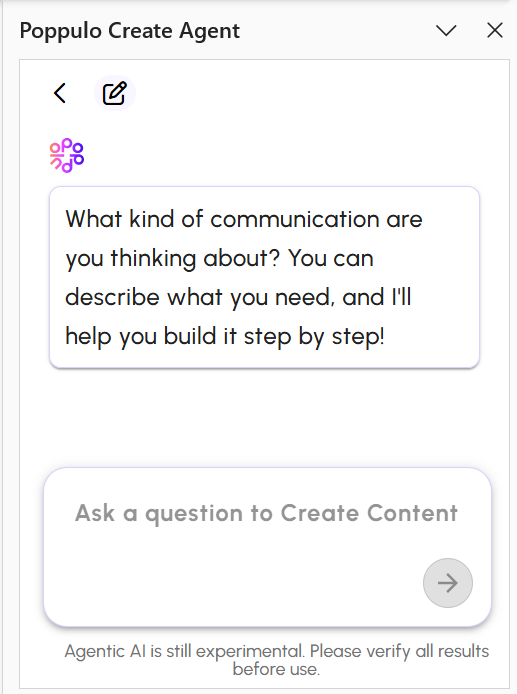
- Enter a query in the prompt area. The AI generates content based on your input. Review the generated content in the pane.
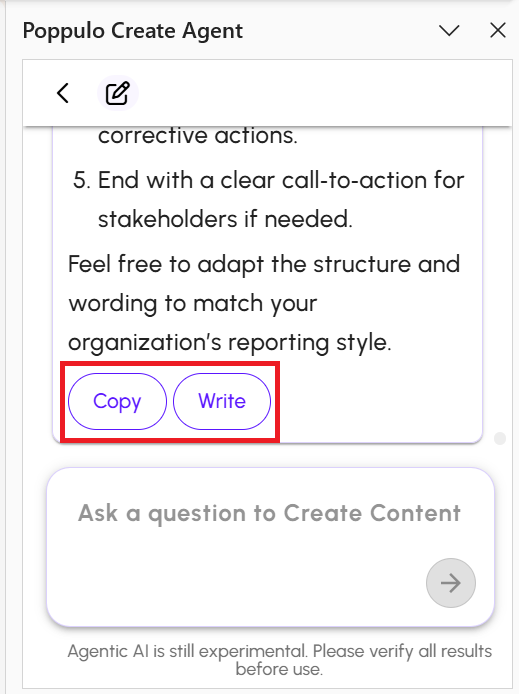
- Click Copy to copy the content and paste it into the word document.
- Click Write to insert the content where you have placed the text cursor in the word document.
To generate content using Review communication
- Select the content in your word document and choose Review communication. When you select the content, the Use this selection as reference option is automatically enabled.
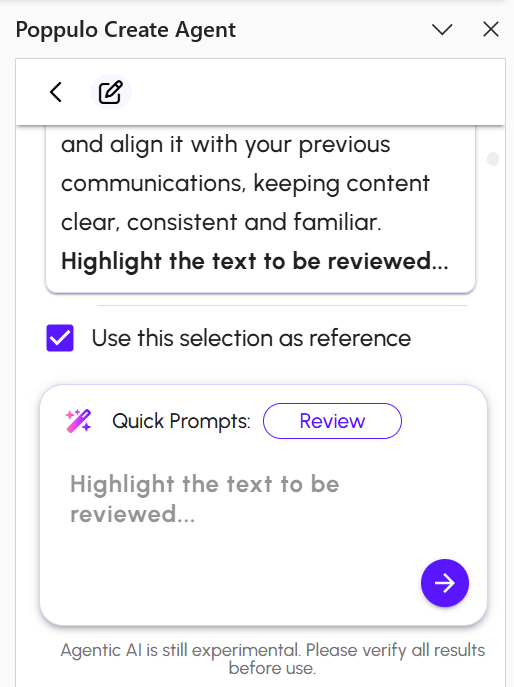
- Click Review in the prompt area. The Create Agent analyzes your content and generates an improved version.
- Alternatively, copy content from the word document and paste it into the prompt area, then click the arrow button to review it.
- After the review is complete, choose one of the following actions:
- Click Copy to copy the content and paste it into the word document.
- Click Write to insert the content where you have placed the text cursor in the word document.
To get the most from Poppulo AI, focus on being clear, specific, and structured in your prompts.
- Be explicit about what you want to create: Start with the format and purpose. For example: “Create an employee email announcing [initiative] to [audience]”
- Include key details upfront: Add context like audience, topic, timing, and desired outcome. Prompts that include details like what is changing, why it matters, and what employees need to do produce stronger drafts.
- Guide the tone and style: If you want content to feel consistent, say so. For example: “Use our past communications to match our usual tone and structure” helps the agent align with your organization’s voice.
- Ask for structure, not just content: Specify what the output should include, such as a subject line, opening hook, key points, and a clear call to action.
- Iterate to improve results: Treat prompts as a starting point. Refine outputs with follow-up prompts like “make this more concise” or “adjust the tone for a frontline audience.”
Use these as a starting point and adapt them to your needs:
| Use Case | Example Prompt |
|---|
| Create new communication | Create an employee email announcing [initiative] to [audience]. Use our past internal communications to match our usual tone and structure. Include a subject line, opening hook, 3 key points, and a clear call to action. |
| Change communication | Write a change communication email about [new process/system] for [audience]. Explain what is changing, why it is changing, when it takes effect, what employees need to do, and where they can get help. |
| Leadership message | Draft an article in the voice of [leader name] about [topic]. Make it sound human and confident. Include a headline, short introduction, key message sections, and a closing that reinforces why this matters now. |
| Review and improve content | Review this draft and tell me if it matches our usual tone and structure. Identify anything that feels off and suggest a revised version. |
Tip: A strong prompt combines what you’re creating, who it’s for, and what success looks like.
