The Poppulo Dashboard is your central hub for managing and measuring employee communications. From here, you can quickly access tools to create and send emails, manage feeds, build surveys, organize events, and launch campaigns.
Poppulo Dashboard
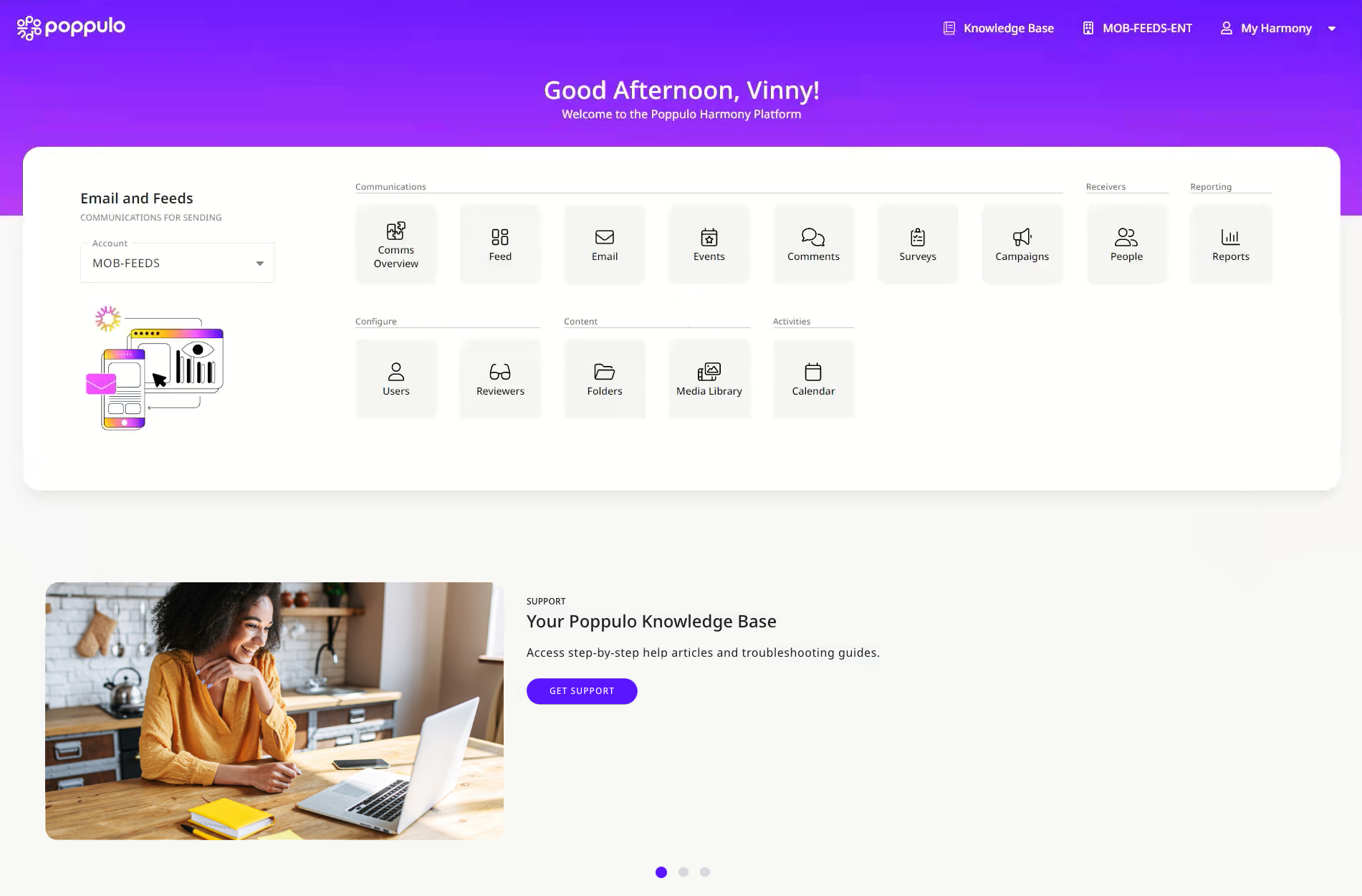
This is your one place for all common tasks, with quick links to account settings, user management, help and support and more. Note: The modules you will see depend on your user access permissions.
Here is a short summary of the available modules:
Communications Area

Comms Overview – This will take you to the Overview area of your account. Here, you will see existing folders and emails, as well as your calendar and recent activity.
Feed - This will take you to the Feed area of your account. Here, you can create new posts, edit existing posts and check the status of posts. (If you don't have access to Feeds and would like to learn more please contact your Customer Success Manager or Support.)
Email - This will take you to the Comms area of your account. Here, you can create new emails, view existing emails and also access any emails sent, in the outbox or bin.
Events - This will take you to the Events area of your account. Here, you can create a new event, view existing events and also click to access sent events or the outbox.
Comments - This will take you to the Comments area of your account. Here, you can view all comments or filter by Folder or Email to see comments associated with a particular communication.
Surveys - This will take you to the Survey area of your account. Here, you can create new surveys or edit existing surveys.
Campaigns - This will take you to the Campaigns area of your account. Here, you can create a new Campaign or view/edit existing Campaigns.
Receivers
People - This will take you to the People area of your account, where you can import or view total active People in your account.
Reporting
Reports - This will take you to the Reports area of your account. Here, you can see the results for the most recently viewed email or switch to a different email.
Configure
Users - This will take you to the Users area of your account. Here, you can create a new user, reset passwords and view your license usage.
Reviewers - This will take you to the Reviewers area of your account, where you can create a new group of reviewers or add a reviewer to an existing group.
Content
Folders - This will take you to the Folders area of your account; you can create new folders, filter by type or user, and view existing folders.
Media Library - This will take you to the Media Library area of your account. You can view all libraries and add images, pdfs and articles.
Activities
Calendar - This will take you to your Calendar area, where you can see any sent, planned or scheduled emails.
