Once a Workflow has been created, you can manage it from the Workflow Overview page. Depending on the Workflow's current status, you can pause, resume, stop, or delete it.
Manage a Workflow
- From the Home page, go to Comms > Workflow.
- Locate the Workflow you want to manage.
- Select the three dots menu next to the Workflow.
- Select one of the available actions:
- Stop to permanently end a running Workflow.
- Pause to temporarily stop a live or scheduled Workflow.
- Resume to continue a paused Workflow.
- Clone to create a copy of the Workflow.
- Delete to remove a Workflow that is no longer needed.
The actions available depend on the current status of the Workflow.
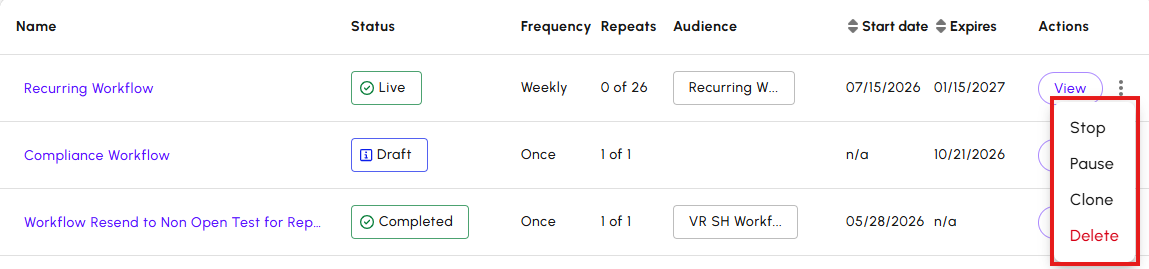
Stopping a Workflow permanently ends its execution. After a Workflow has been stopped, it cannot be resumed.
To stop a Workflow:
- Open the three dots menu for the Workflow.
- Select Stop.
- Confirm the action when prompted.
Note: If you plan to continue the Workflow later, use Pause instead of Stop.
Pausing a Workflow temporarily stops recipients from progressing through the Workflow. No new emails or actions are processed while the Workflow is paused.
To pause a Workflow:
- Open the three dots menu for the Workflow.
- Select Pause.
The Workflow status changes to Paused.
When you resume a paused Workflow, it continues processing from where it was paused. Previously completed steps are not repeated.
To resume a Workflow:
- Open the three dots menu for the paused Workflow.
- Select Resume.
The Workflow status changes to Live or Scheduled, depending on its configuration.
Delete a Workflow when it is no longer required.
To delete a Workflow:
- Open the three dots menu for the Workflow.
- Select Delete.
- Confirm the deletion.
Note: Deleted Workflows are removed from the Workflow list. If a deleted Workflow needs to be restored, contact Poppulo Support.
