As an Account Administrator, you can lock a user account to restrict access or free up a licence. You can also unlock a user account to restore access when required. Both actions are available in the
Admin Area.
Before You Begin
- You cannot lock or unlock your own user account.
- If a user belongs to multiple accounts, you can apply the action to:
- Just this account
- All accounts
Lock a User
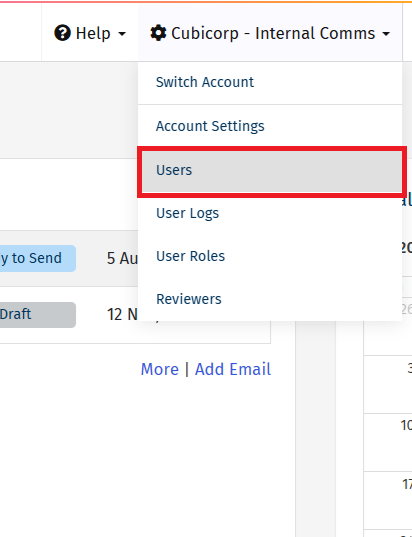
- In the top navigation bar, click your Account name.
- Select Users from the dropdown menu.
The Users list screen appears.
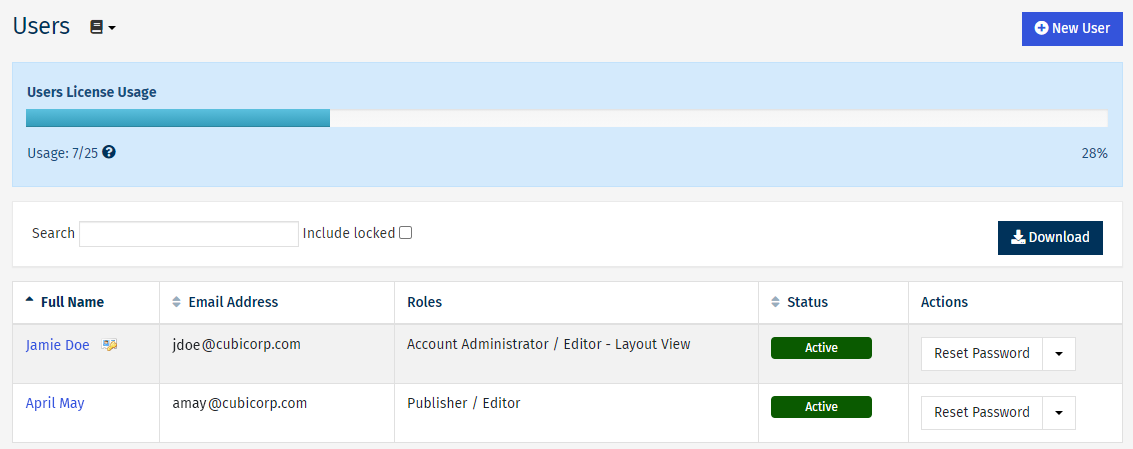
- In the Users list, locate the user you want to lock.
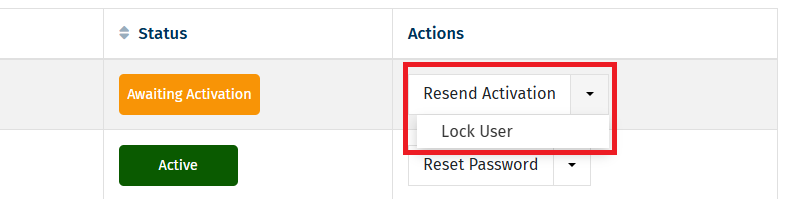
- In the Actions column associated to the user, click the dropdown menu and select Lock User.
- A confirmation dialog box appears, click Lock to lock the specific user. You must provide a reason for locking the user in the Reason for Lock field.
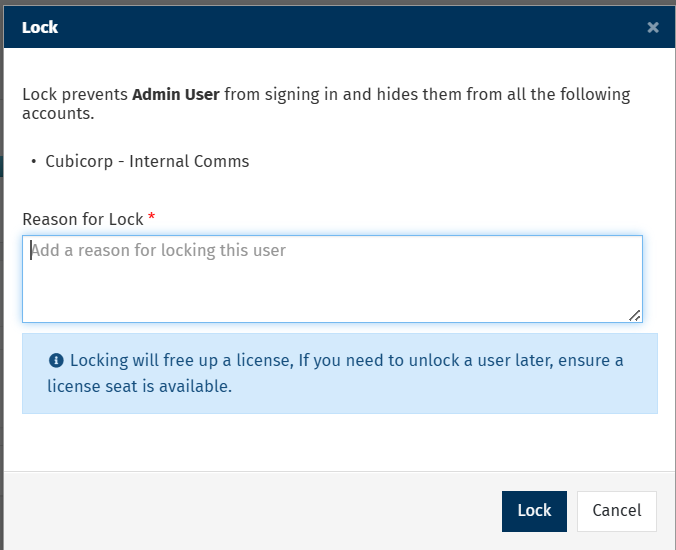
The user account is locked and the user can no longer access the platform.
Unlock a User
Unlocking a user restores access to the platform.
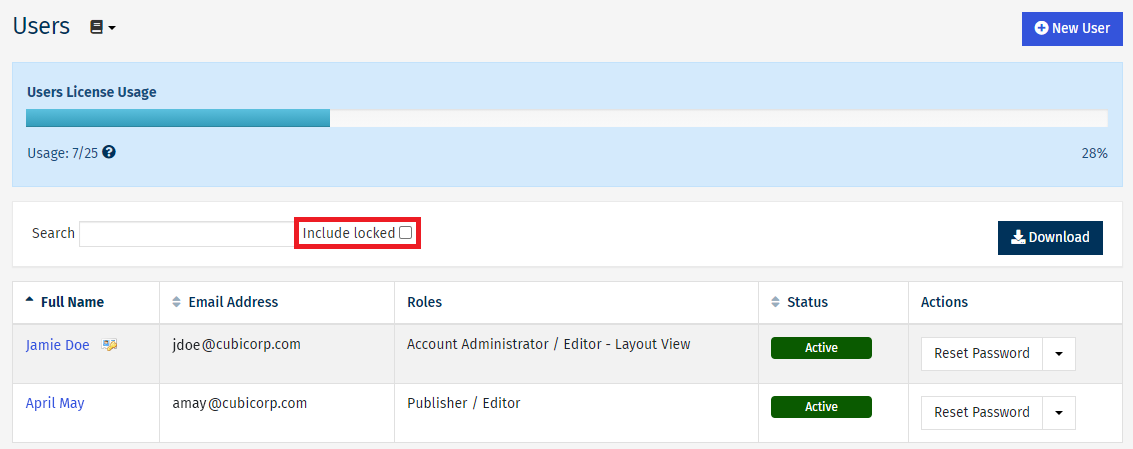
- On the Users list screen, select the Include Locked checkbox to display locked users. All the locked users list appears.
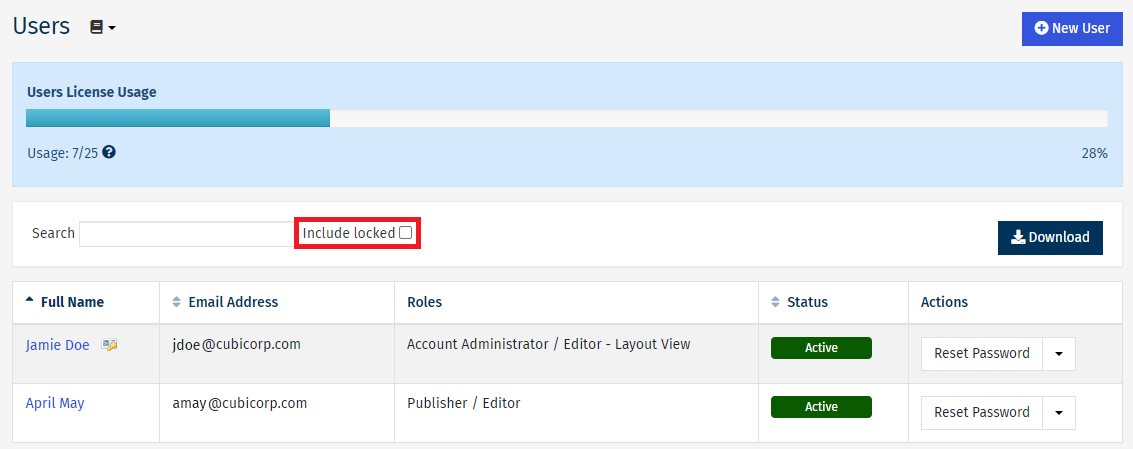
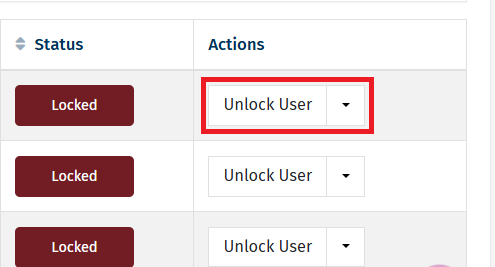
- Locate the user you want to unlock. In the Actions column, select Unlock User.
- A confirmation dialog box appears, click Unlock. You must provide a reason for unlocking the user in the Reason for Unlock field.
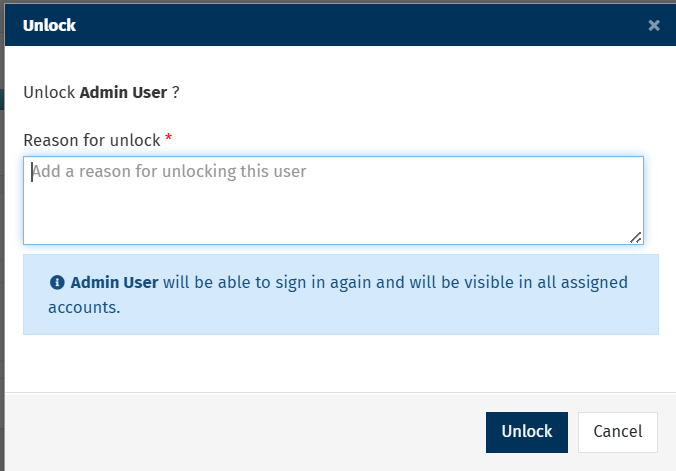
The user account is unlocked and access is restored.
View Locked Users
To view locked users:
- Go to the Users list screen.
- Select the Include Locked checkbox.