Feature Availability
This feature is only available on certain Poppulo packages. For more details, see our packages and pricing page
Email Auto Translate allows you to quickly translate your email content into multiple languages using AI.
With a single click, you can generate translated versions of your email, helping you communicate with global audiences faster and more efficiently.
When should you use Email Auto Translate?
Email Auto Translate is best suited for:
- Time-sensitive communications
- High-volume or recurring emails
- Teams looking to reduce translation effort, costs, and turnaround time
For content that requires precise wording or regulatory accuracy, you may prefer manual translation or include a review step. To learn more about other translation options, see About Emails in Multiple Languages.
How it works
Email Auto Translate is used during the multilingual email creation process, before the email is sent. You generate translations, review them, and make any edits as needed, ensuring you have full control over the final content each recipient receives.
At a high level:
- Create your email using a multilingual template
- Build your content in your default language
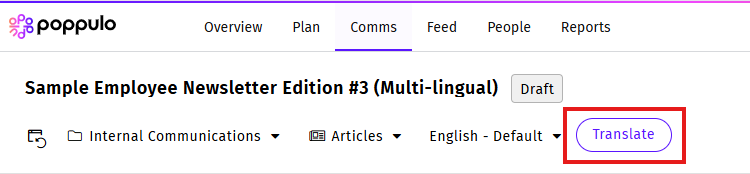
- Click Translate to generate additional language versions using AI
- Review and edit translations if needed
- Send your email
For step-by-step instructions, see: Create and Translate Emails in Multiple Languages
Editing translated content
After translating your email, you can:
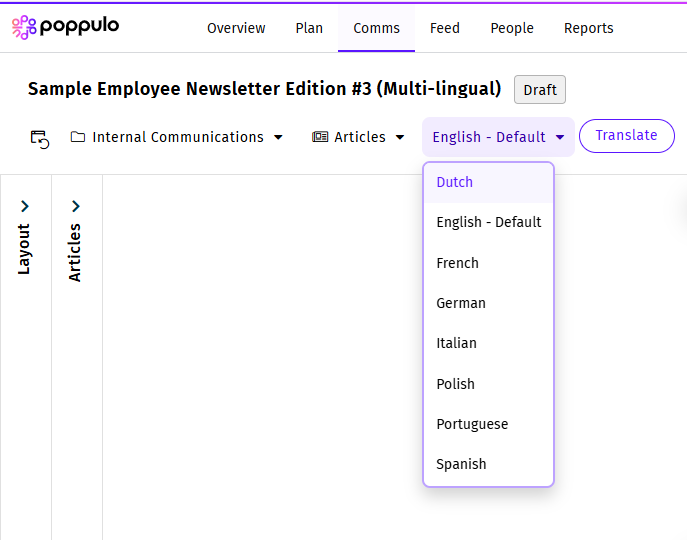
- Switch between languages using the language dropdown
- Edit content directly in any language
- Refine wording, tone, or terminology
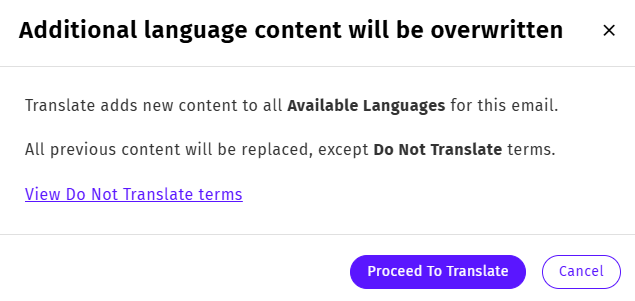
Note: Clicking Translate again will overwrite all translated content.
If your email contains words or phrases that should remain in their original language, you can add them to the
Do Not Translate list before running Email Auto Translate.
This is useful for content such as:
- Brand and product names
- Company names
- Technical terms
- Legal or compliance text
- URLs System names
- Acronyms or other terminology that should not be translated
When Email Auto Translate runs, any matching terms in the
Do Not Translate list are preserved in their original language.
Add a term
- Click Translate.
- In the confirmation dialog, click View Do Not Translate terms.
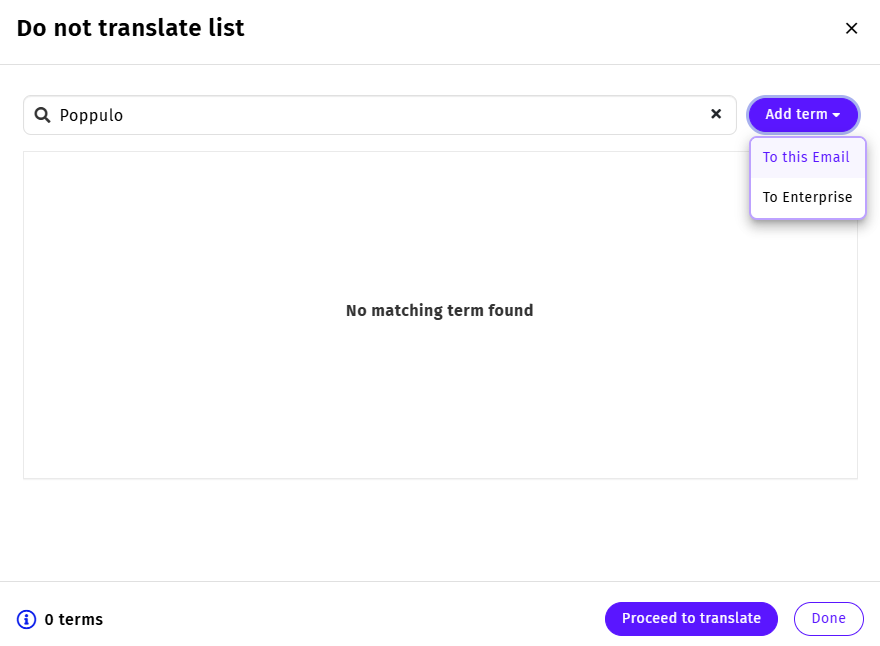
- Enter the word or phrase you want to exclude from translation.
- Click Add term and choose one of the following:
- To this Email to exclude the term only for the current email.
- To Enterprise to make the term available across your organization's emails.
Note: Only Administrators can add, edit, or remove Enterprise terms. Enterprise terms can also be managed centrally by an Enterprise Admin from Enterprise Settings. Other users can add Email terms that apply only to the current email.
- Your term is then added to the Do not translate list.
- Click Proceed to translate to regenerate the translated content and to ensure that any terms in the Do not translate list continue to be preserved in their original language.
Edit or remove a term
To update an existing term:
- Open the Do Not Translate list.
- Search for the term if needed.
- Click the Edit icon to modify the term or change its scope.
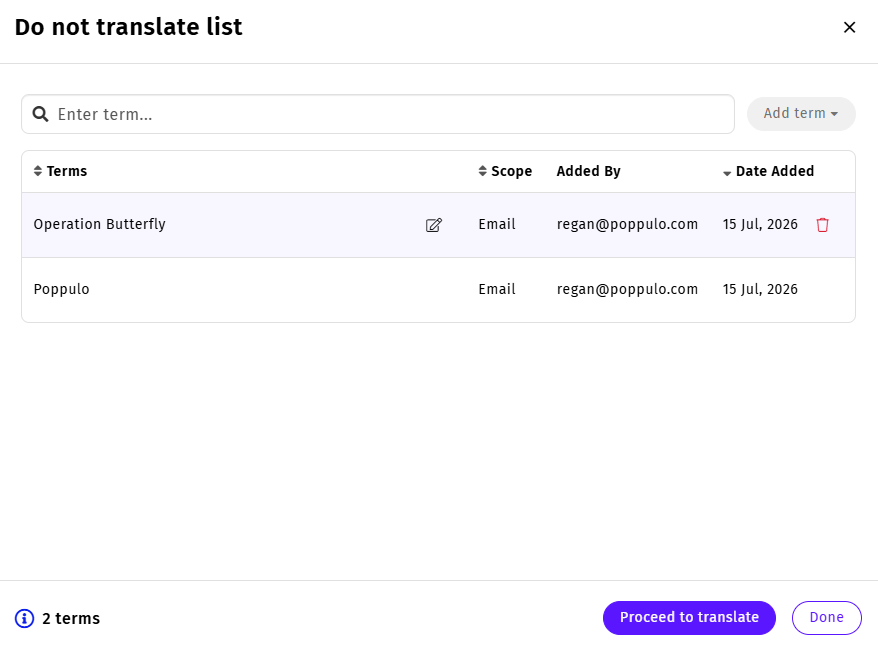
- To remove a term, click the Delete icon.
Note: Running Email Auto Translate again regenerates translated content, but any terms in the Do Not Translate list continue to be preserved in their original language.
How recipients see translated emails
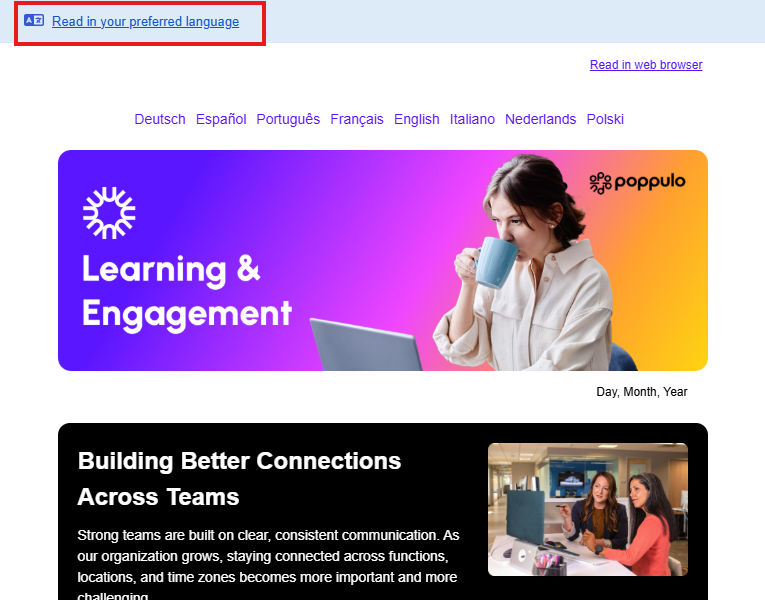
- If a recipient has a Preferred Language set, they receive the email in that language. Subject line and preview text are also translated.
- If not, they receive the default version and can switch to another language.
Learn more: Send Emails by Preferred Language
Best practices
- Review translations before sending important communications
- Use test sends to validate language versions
- Avoid re-running Translate after making manual edits
- Combine Auto Translate with internal review where needed
AI terms requirement
Email Auto Translate uses AI to generate translations. To use this feature, your organization must first accept Poppulo's AI Supplemental Terms.
