Domain Verification (Trusted Sending Domains)
Domain verification protects your organisation by ensuring that only authorised users can send emails from the domains you have configured in Poppulo.
Why Domain Validation Is Required
Before a domain can be used to send email in Poppulo, it must be verified. Verification confirms that your organisation owns and controls the domain.
Verification ensures that:
- Only your organisation can send email from your domains
- Unauthorised users cannot use your domains
- Email sending remains secure and trusted
Where to Manage Your Domains
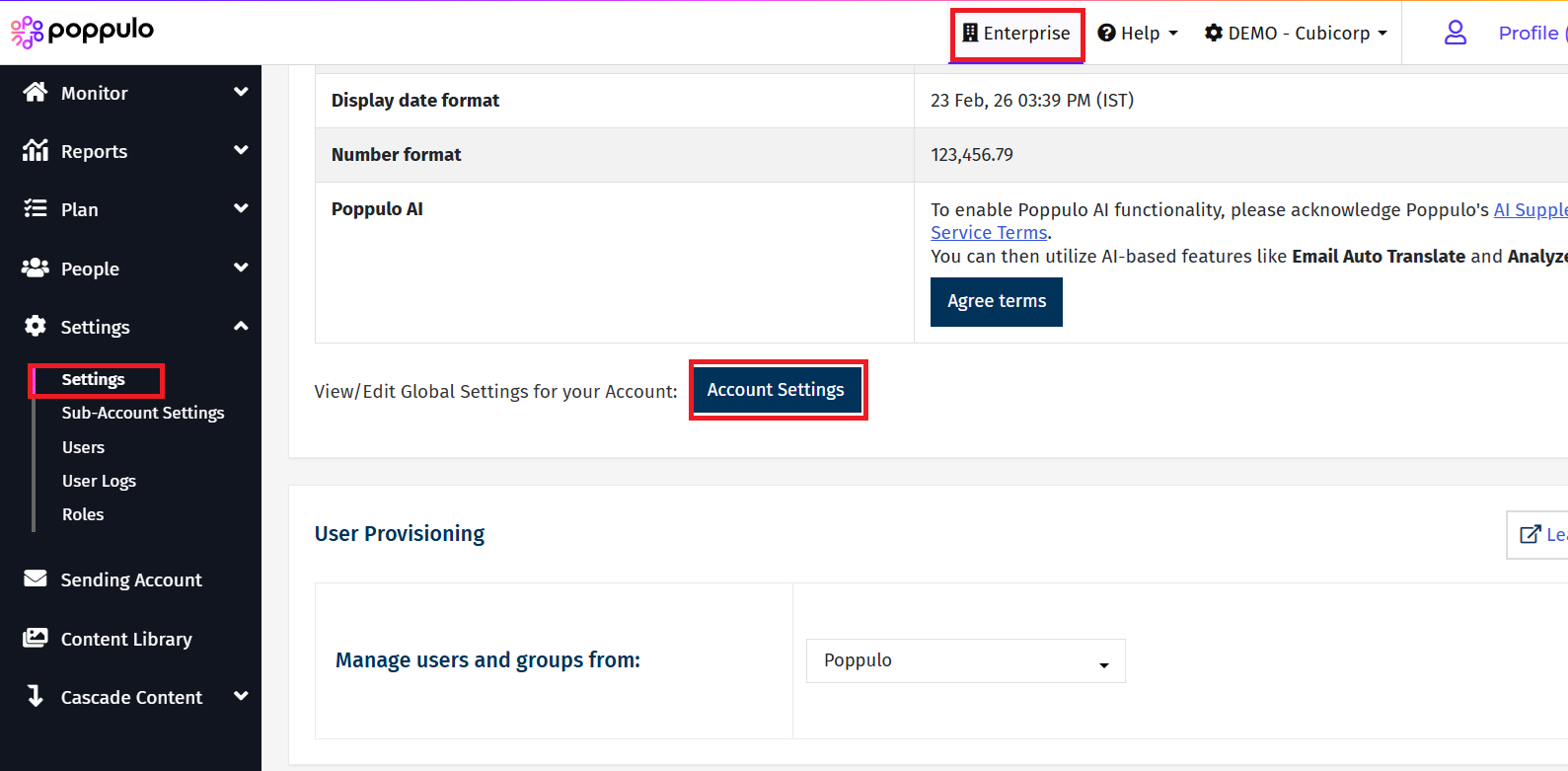
Manage all your domains in, Enterprise Settings > Settings > Account Settings > Trusted Sender Domains.
Note: You must have Enterprise Administrator license to access the Enterprise Settings. If you need to verify the domain and do not have Enterprise Administrator license, then you must contact Poppulo Support.
From this page, you can:
- View all configured domains of your organisation
- Add a new domain and complete the domain verification process
Note: Only domains that have been successfully verified will be available for selection when sending emails.
How Domain Verification Works
Domain verification is completed using a DNS TXT record. A TXT record is a type of entry in your domain’s DNS (Domain Name System) settings that allows you to store text-based information. Adding this record proves that you own and control the domain.
When you add a new domain in Poppulo:
- We generate a unique TXT record value for that domain.
- You add this TXT record to your domain’s DNS settings.
- Poppulo verifies the record to confirm ownership.
- Once verified, the domain is marked as Verified and can be used for sending.
Steps to Verify a Domain
- Go to Trusted Sending Domains: Navigate to Enterprise Settings > Settings > Account Settings > Trusted Sender Domains.
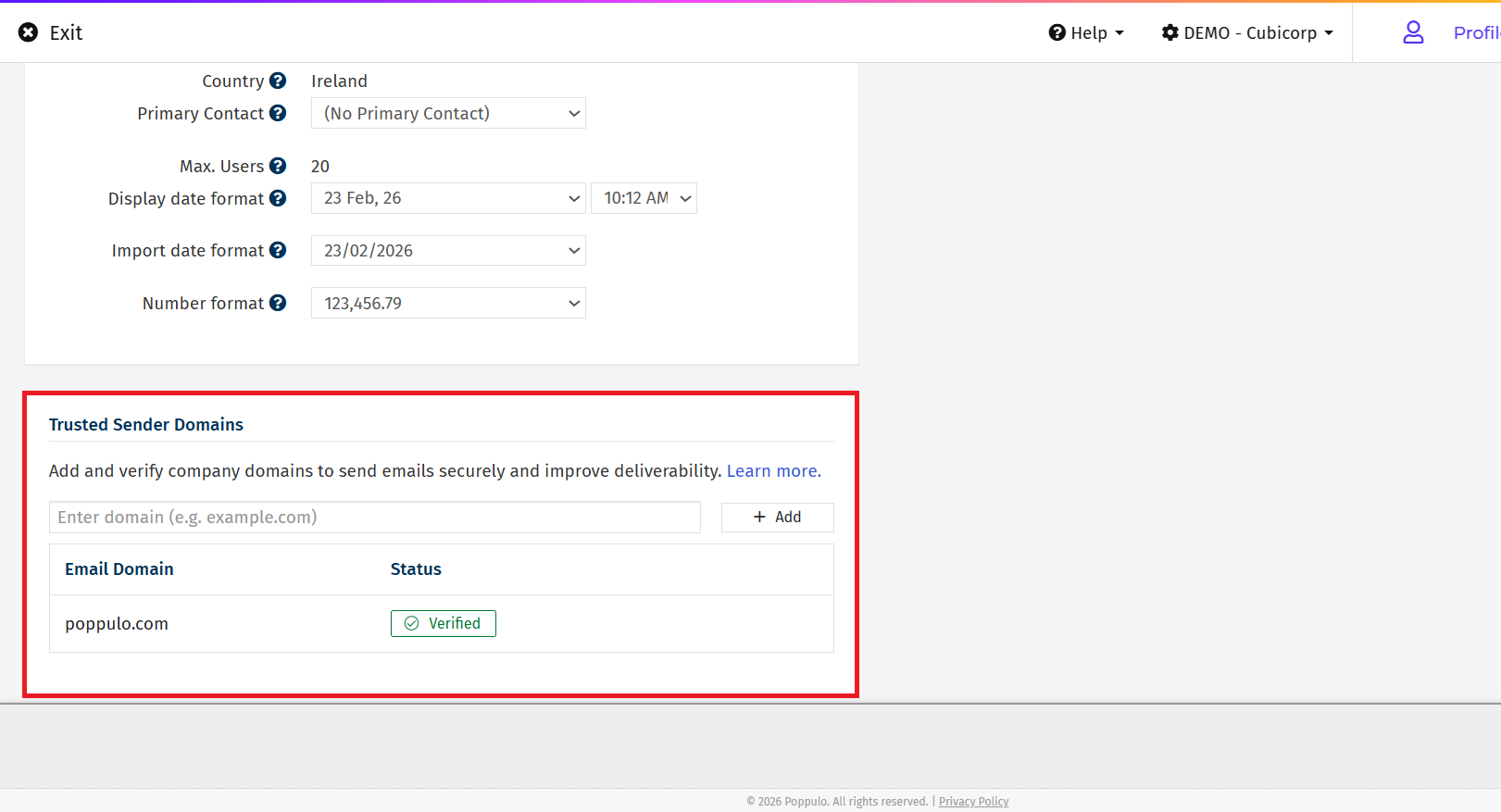
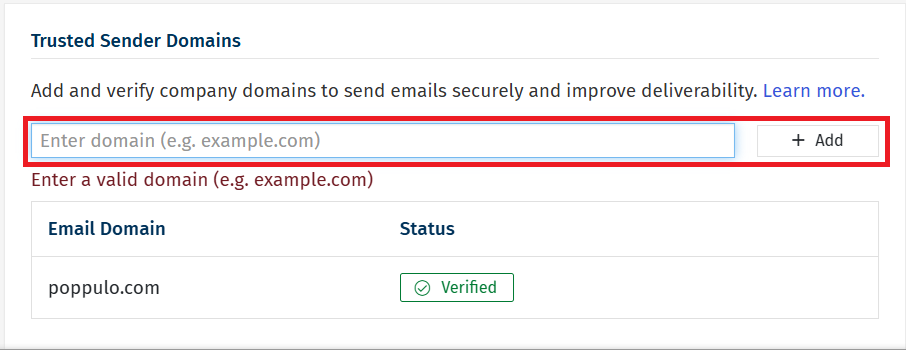
- Add a New Domain: Select Add to add a domain and enter the domain you want to verify.
- Copy the TXT Record Details: You’ll be shown a TXT record name and value. These details are unique to your domain.
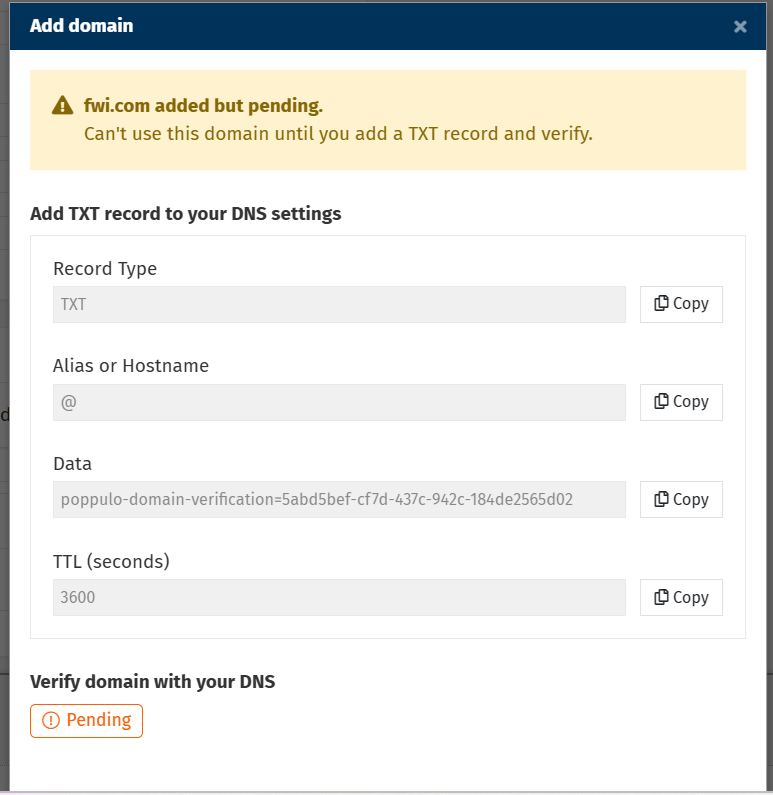
- Update your DNS Settings: Log in to your DNS provider’s management console and add a new TXT record using the details provided. Note: Contact your IT team or DevOps team to update the DNS Settings as per your Organisations requirement.
- Save your changes: Ensure the TXT record is saved correctly.
- Verify the Domain: Return to Poppulo and follow the on-screen instructions to verify the domain.
Note: DNS changes often take effect within minutes. In some cases, propagation can take up to 48 hours.
Important Notes
- Only verified domains can be used in the From and Reply-To fields.
- Each domain must be verified separately.
- Generic email domains (for example, Gmail, Hotmail, iCloud) are not supported. These domains cannot be validated for secure organisational use.
Things to Keep in Mind
- DNS propagation time: Some DNS providers update records immediately. Others may take up to 48 hours.
- Accuracy matters: Ensure there are no typos, missing characters, or extra spaces in the TXT record value.
- Multiple domains: Each domain requires its own TXT record and separate verification.
