As an Enterprise Admin, you can can add additional users to your Enterprise account and choose the level of access they have. You can give them complete Enterprise access, access to manage an Enterprise Group or access to particular Sub-Accounts Only (Add a User to a Sub-Account in Enterprise after they are created). Use the instructions below to add a user in you Enterprise account.
Note: This information is intended for Enterprise Administrators only.
Create a New User in Enterprise:
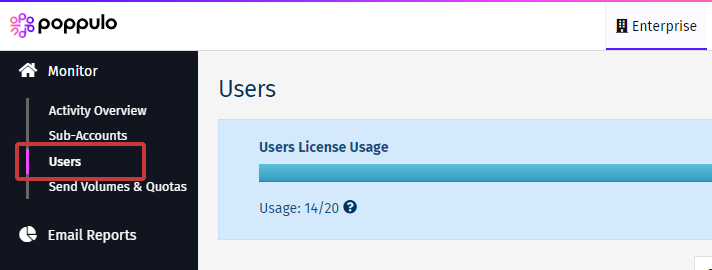
- In Enterprise, under Monitor, choose Users from the menu on the left.
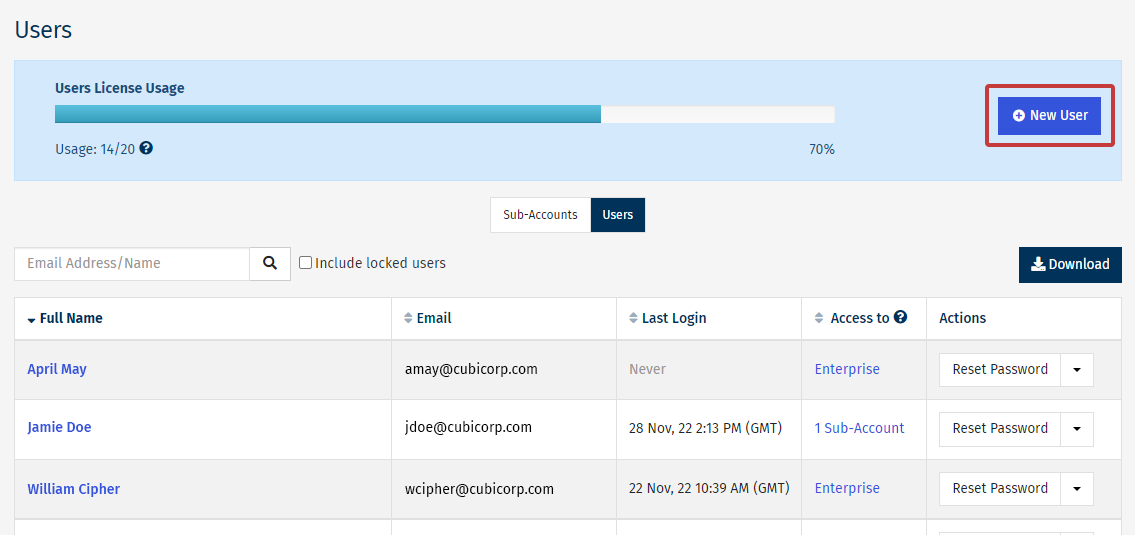
- On the Users screen click the New User button.
-
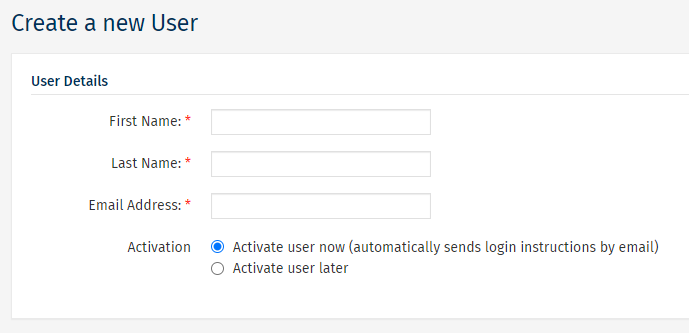
Enter the First Name, Last Name and Email Address of your new User. Choose to Activate user now, or Activate user later.
- Assign a Role to your user.

- The following roles can be assigned by an Enterprise Administrator when creating a new user:
-
Sub Accounts Only: gives access to specified sub-accounts only with no access the Enterprise.
-
Enterprise Administrator: gives full access to manage Sub-Accounts and users on the Enterprise account.
-
Enterprise Group Manager: gives access to Sub-Accounts within an assigned Group.
- Note: Additional Enterprise roles are available, including Enterprise Systems Administrator and Enterprise Integrations Manager. These roles are assigned by Poppulo Support and cannot be assigned by an Enterprise Administrator. For more information, see Enterprise Settings: Roles.
- Click Save to complete the user creation.
