A Poppulo Harmony Campaign allows you to plan and execute a genuine cross-channel digital campaign comprised of Email, Mobile and Feed content. As a result of having Campaigns, all emails sent in Poppulo Email will be tracked and measured. You can
To Add a Campaign to an Article:
-
Choose a Newsletter and Create or Edit an Article.
-
In the Analytics Campaign(s) dropdown, choose one or more Campaigns.
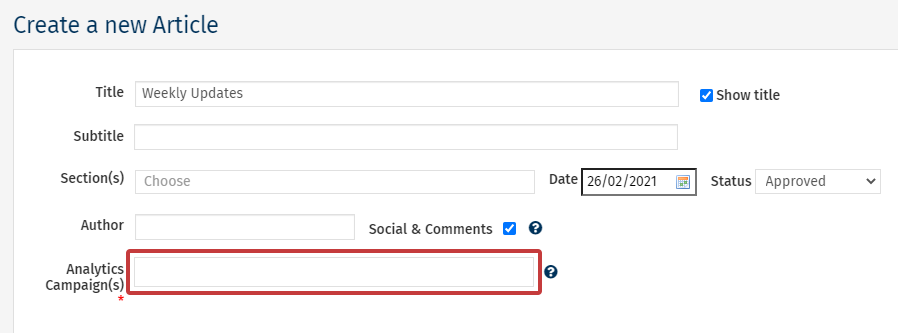
Note: You may need to Create a Campaign in order to associate an Article with a Campaign.
-
Your chosen Campaign will be appear as below; click Save when done.
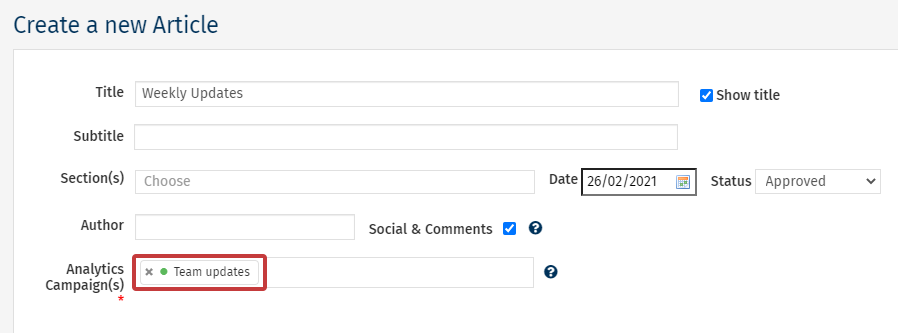
Note: To avoid the accidental exclusion of Campaigns, and to ensure complete reporting, this is a mandatory field. Choose to include a campaign or actively choose the No Analytics Campaign option.
- Complete your send as normal. The article will be tracked as part of the chosen Campaign(s).
<back to top>
To Add a Campaign when Sending:
-
Start the process to Send your Email.
-
When you reach Step 4, the additional step in the Send Wizard, choose a Campaign to associate your email with. (You may need to Create a Campaign.)
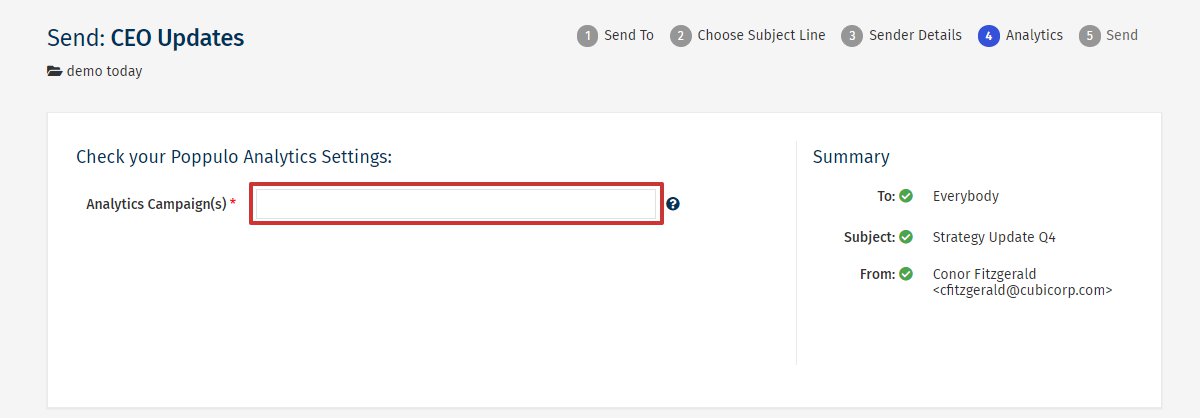
Note: To avoid the accidental exclusion of Campaigns and to ensure complete reporting, this is a mandatory field. Choose to include a Campaign or actively choose the No Analytics Campaign option to proceed with your send.
- Complete your send as normal. The Email will be tracked as part of the chosen Campaign. You can View a Campaign Activity Report to see the results.
<back to top>
To Add a Campaign to a Feed or Mobile Post
-
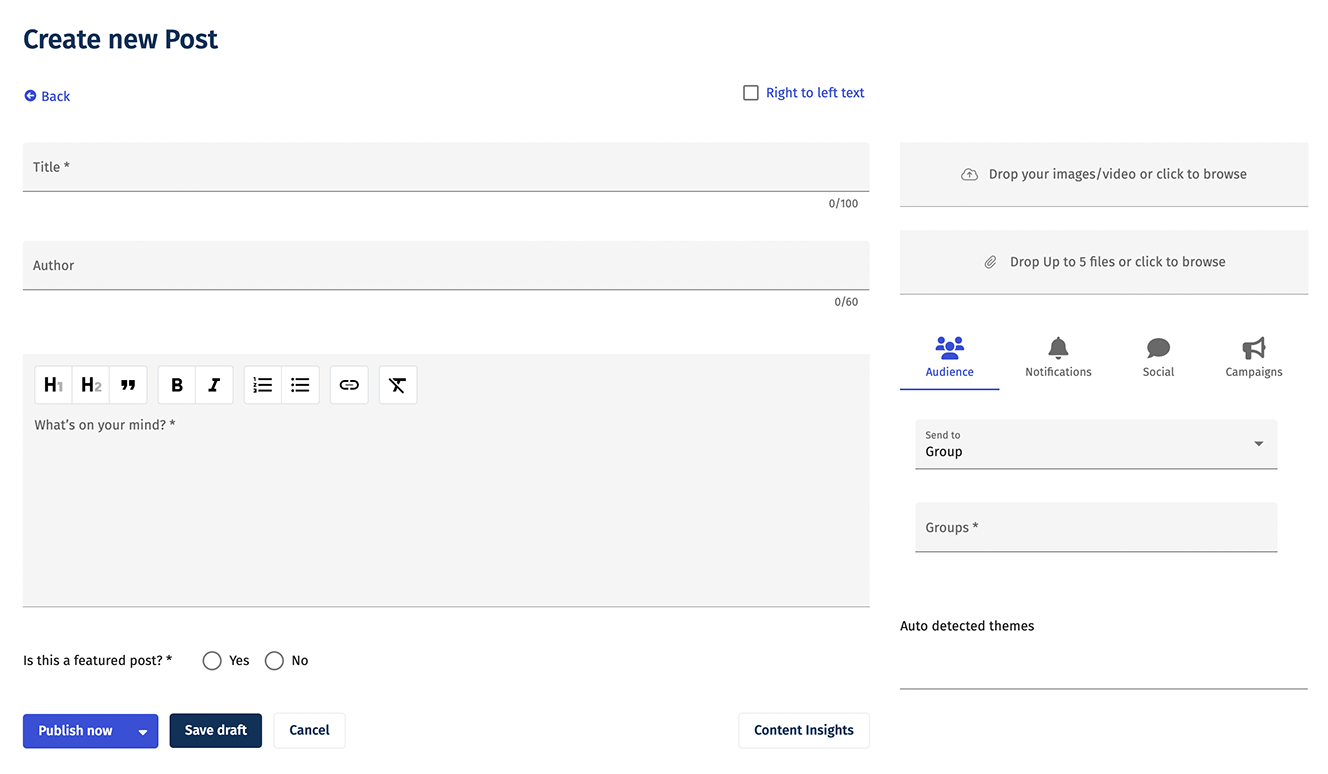
Add or Edit a Feed Post.
-
Select Campaigns on the right. Click on the drop-down to select a Campaign.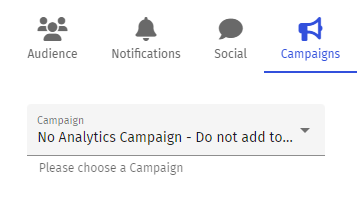
- Save or Publish your post. You can view your Advanced Multichannel Reports: Campaigns to see the results.
<back to top>