Workflow Analytics provides visibility into the performance of emails sent as part of a Workflow. It enhances the Email Performance report by allowing you to identify workflow emails, view the workflow associated with each email, and filter performance data by workflow.
Use Workflow Analytics to:
- View performance metrics for emails sent as part of a workflow.
- Identify which workflow an email was sent from.
- Compare workflow and non-workflow email performance.
- Analyze email performance for a specific workflow.
How to access Workflow Analytics
Workflow Analytics is available in the Email Performance report.
To access Workflow Analytics:
- Navigate to Reports > Email.
- Open the Performance report.
The report includes two workflow-specific filters and a Workflow column in the performance table.
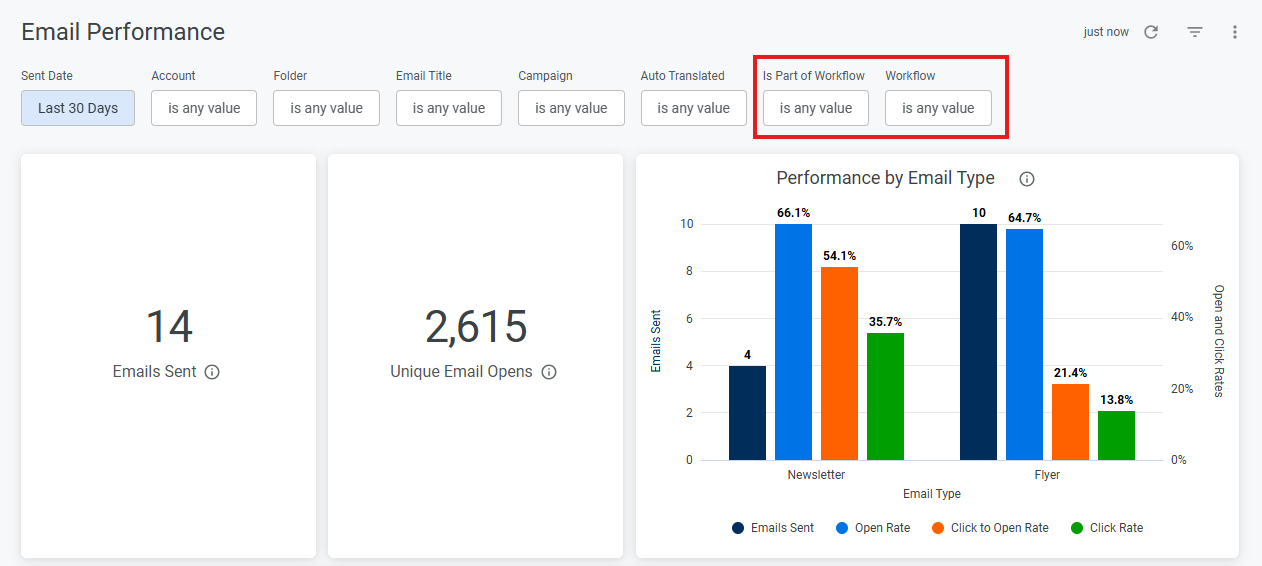
How to use the filters on the Email Performance report
Is Part of Workflow
Filters the report based on whether emails were sent as part of a workflow.
Select Yes to display only emails sent as part of a workflow. All tiles, charts, and tables in the report update to show performance data for those emails.
Select No to display emails that were not sent as part of a workflow.
Workflow
Filters the report by a specific workflow.
Select a workflow to update the report and view performance metrics for emails sent as part of that workflow.
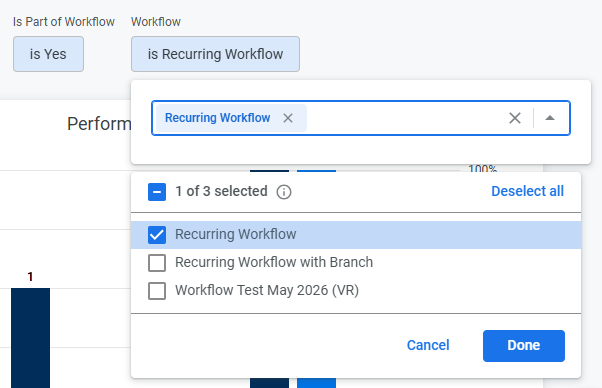
Email Performance Report
The Workflow column is available in the Performance of Sent Emails table.
This column displays the workflow associated with each email. If an email was sent as part of more than one workflow, the applicable workflows are listed in the column.
Use the other columns in the table to review the performance metrics for each individual email.

Note: Campaign information is not currently available for emails sent through a workflow.
